# Introduction

Expand your accounting with integrations and apps for EG Xena.

## What can you do with the Xena API?

With our API you can integrate your systems with the online accounting system Xena. We also allow for external developers to build, publish and earn money with their own apps in the Xena App Store.

EG Xena has multiple ways to interact with external systems:

* Build [custom plugin](/xena-developer/development/get-started/createplugin) applications - UI integration
* Integrate your Xena data with other business applications with [Direct API calls](/xena-developer/development/get-started/the-xena-api) – request based
* [Webhook callbacks](/xena-developer/development/get-started/using-webhooks) - event based integration
* Save meta data on objects in Xena (e.g. an order or a partner)

{% hint style="info" %}
For a complete overview of the Xena API, please go to <https://xena.biz/api-doc/>
{% endhint %}

{% embed url="<https://www.youtube.com/watch?v=JEEfYtWV3X4>" %}

### Feedback and support

You are always welcome to [write us with questions and feedback](mailto:developer@xena.biz).

### Are you a developer?

Join the adventure! Become a Xena Partner and submit your app. [Get in touch](mailto:developer@xena.biz).


# The possibilities

How you can build on Xena.

An integration can use any of these three types alone or in any combination desired for the specific integration. To give an idea to how Xena works behind the scenes, have a look at this diagram:

![Diagram showing the use of Xena API to connect Xena UI with Xena Backend, your app/plugin and anything else.](https://3101502904-files.gitbook.io/~/files/v0/b/gitbook-legacy-files/o/assets%2F-LZdybBvJaAboIV6zNHC%2F-LnrFteTtXF9jAb1Mvh6%2F-LnrFyuoR0zQ41z8uUaF%2FXenaAPIDiagram.jpg?alt=media\&token=009b4f09-ce3f-4a83-964b-28807a42f5af)

Here there are three major parts:

* **Xena UI** \
  The user interface which is found on my.xena.biz and where all the user interaction happens. Inside the Xena UI an app can create “plugins”, these plugins can be widgets, extra tabs, buttons, context menus etc.
* **Xena backend**&#x20;  \
  The backend contains all business logic and is also the datastore for Xena. The backend exposes an API which the Xena UI communicates with, this is the same API which any App should interact with to get or change data inside Xena. The backend also contains a webhook engine which can notify external parts whenever something inside the Xena datastore changes.
* **Third party App**&#x20;  \
  This is the final piece of the puzzle, custom applications built by third party developers like yourself.


# Best practices

Making your app with these guidelines in mind, will help end users to feel comfortable, because of the consistent look and feel as well as communication.

Code

Please refer to the other pages in the [Get started](/xena-developer/development/get-started) section of our developer site.

Design&#x20;

We provide all developers with our CSS and style guide to help you easily design your app or plugin to match the rest of Xena. Please refer to our [Design Guide](/xena-developer/user-interface/styleguide) for a complete overview of how to style different elements.

Regarding icons, please use [Font Awesome](https://fontawesome.com/icons?d=gallery\&q=s\&s=solid). Exceptions could be plugins that mimic other existing systems.

Workflow

Have a clear flow in your app, to help the user accomplish his task. To do this, make wise use of hierarchy, tabs and/or steps.

Also, carefully consider where it makes most sense to locate your app. Does it need a menu for itself with its own views? Or just a spot in an existing menu or a tab in a view?

Communication

Using a simple yet professional language will help the user to understand your message quickly. End users may not need to know every detail, or a full explanation. If a decision can be made with just a few facts, it may be a better solution.

Don't:

* Don't use humor or jokes in warnings or everyday tasks.
* Don't address the user by name, unless there is a good contextual reason.
* Don't invent new terms for key features. E.g. don't say "contact" when you mean "partner".

Do:

* Check your spelling.
* Ensure your texts are clear and natural.
* Stick to Xena's color scheme, especially regarding alerts and primary buttons.

Documentation

Provide the help users might need. You can create written documentation, videos or tutorials for your app and paste a link in your app's description in the Xena App Store. Again, keep it in a clear, accurate and natural language. We recommend you provide this documentation in the languages of your primary users.


# User experience

Create good UX in Xena.

Using Bootstrap – or any other design framework – help styling components quickly and consistently. But it is not a user experience framework. The following will help you use the provided design to create a good user experience in Xena.

### Primary action&#xD;

There can be many buttons and links in a view, but only one primary action.

| <img src="https://3101502904-files.gitbook.io/~/files/v0/b/gitbook-legacy-files/o/assets%2F-LZdybBvJaAboIV6zNHC%2F-LnrGThKhBWCZAkXrxRk%2F-LnrGcN9pC0qMILP_q4n%2FButtonsDo.svg?alt=media&amp;token=65f11d43-78ff-4baa-866d-7fc00968a731" alt="" data-size="original"> | <img src="https://3101502904-files.gitbook.io/~/files/v0/b/gitbook-legacy-files/o/assets%2F-LZdybBvJaAboIV6zNHC%2F-LnrGThKhBWCZAkXrxRk%2F-LnrGthpxzPDnbvoJR3j%2FButtonsDont.svg?alt=media&amp;token=82771794-a4bb-4270-a714-534722b2692d" alt="" data-size="original"> |
| -------------------------------------------------------------------------------------------------------------------------------------------------------------------------------------------------------------------------------------------------------------------- | ---------------------------------------------------------------------------------------------------------------------------------------------------------------------------------------------------------------------------------------------------------------------- |
| **DO:** Clearly highlight the primary action the user can perform. All other buttons are not as important.                                                                                                                                                           | **DON'T:** Do not give every button the styling for a primary button.&#xD;                                                                                                                                                                                             |

### &#xD;Colors for buttons and alerts&#xD;

For most part, only the default styling and the primary button styling is needed. However, careful use of colors can in some cases communicate urgency or importance to the user.

| <img src="https://3101502904-files.gitbook.io/~/files/v0/b/gitbook-legacy-files/o/assets%2F-LZdybBvJaAboIV6zNHC%2F-LnrGThKhBWCZAkXrxRk%2F-LnrHBaTKicczJ4QbZbx%2FColorsDo.svg?alt=media&amp;token=e38061c1-f77f-4d78-9849-85d5145b4d09" alt="" data-size="original"> | <img src="https://3101502904-files.gitbook.io/~/files/v0/b/gitbook-legacy-files/o/assets%2F-LZdybBvJaAboIV6zNHC%2F-LnrGThKhBWCZAkXrxRk%2F-LnrHEoCqb1Ql4fwJ81r%2FColorsDont.svg?alt=media&amp;token=91f0bbdf-017c-4812-a8b5-ba3c2761c975" alt="" data-size="original"> |
| ------------------------------------------------------------------------------------------------------------------------------------------------------------------------------------------------------------------------------------------------------------------- | --------------------------------------------------------------------------------------------------------------------------------------------------------------------------------------------------------------------------------------------------------------------- |
| **DO:** Use "danger" colors when performing a delete action or something an action failed. Use "success" colors when a job or action was completed successfully.                                                                                                    | **DON'T:** Do not use different colors for the sake of decoration.&#xD;&#xD;                                                                                                                                                                                          |

### Accessible on all devices&#xD;

Xena is available on computers, tablets and smartphones. It can be a challenge to accommodate much information on a small screen. Take this into consideration when you design your app, plugin or integration.

|                                                                                                                |                                                           |
| -------------------------------------------------------------------------------------------------------------- | --------------------------------------------------------- |
| **DO:** Make views and actions accessible to users using their fingers and users with mouse and keyboard.&#xD; | **DON'T:** Do not make the UI dependent on hovering.&#xD; |


# Get started

Learn the basics of how to work with Xena API.


# Become a developer

Becoming a Xena Developer allows you to register your own apps.

1. Login to Xena in the fiscal which you would like to create your application.
2. In the main menu, go to Apps > Appstore.
3. Find the app "Xena developer" and install it. This will allow you to submit and register apps.&#x20;

<figure><img src="https://3101502904-files.gitbook.io/~/files/v0/b/gitbook-x-prod.appspot.com/o/spaces%2F-LZdybBvJaAboIV6zNHC%2Fuploads%2FPlylDttYGF3UgAGGZHqi%2F1%20Xena%20developer%20app.png?alt=media&amp;token=9095905c-6fcf-4924-9e5b-a45d50d23f47" alt=""><figcaption></figcaption></figure>

The installed app can be found under the menu item Appstore.


# Register your app

How to register and submit your app to the appstore.

Once you have [installed the Xena Developer app](/xena-developer/development/get-started/installxenadeveloper) you can go to Apps > Developer in the main menu. Here you will get a list of all the apps in the fiscal setup. If this is your first app this list will be empty.

To create an application for use in Xena you will need to register it. Registering your app ensures that ...

* We know who has applications running in Xena.&#x20;
* We can contact you if we are making changes to the Xena API that may affect your application.
* We can contact you if there are any issues with your application.
* You can get authentication credentials if needed in your app.

## Application registration

1. Go to Apps > Developer.
2. Click the "Create" button to start the registration.

![The dialog for creating an app in Xena.](https://3101502904-files.gitbook.io/~/files/v0/b/gitbook-legacy-files/o/assets%2F-LZdybBvJaAboIV6zNHC%2F-LZjF6wimp8NRUvhu0Rk%2F-LZjF7tMT-vJMd1gUH-V%2FCreateApp.PNG?generation=1551275954863727\&alt=media)

1. Fill in the form with the **name** and a **short description** of your application. This information will help to inform potential users about what they can expect from your application.

You can also pick a **category** for your application so that we know where to display it in the app store.

* Payments
* Bookkeeping
* Construction
* Payroll
* Project & Calendar
* Reminders & Debt Collection
* Webshop
* Others

**Visibility** allows you to decide if other users should be able to see your app.

| Visibility | Meaning                                                                 |
| ---------- | ----------------------------------------------------------------------- |
| Public     | Everybody can see and use your app.                                     |
| Private    | Only fiscalsetups where you have a membership can see and use this app. |
| Internal   | Only the current fiscalsetup can see and use this app.                  |

## List of your applications

You should now see a list of your applications. Click on the name of your application to see its details.

![List of your Xena apps.](https://3101502904-files.gitbook.io/~/files/v0/b/gitbook-legacy-files/o/assets%2F-LZdybBvJaAboIV6zNHC%2F-LZn8vBJz9V8iOocJ_VY%2F-LZn8vsbvHRdDshh5Tcr%2FCreatedApplicationList.PNG?generation=1551341437608244\&alt=media)

## Tab 'Details'

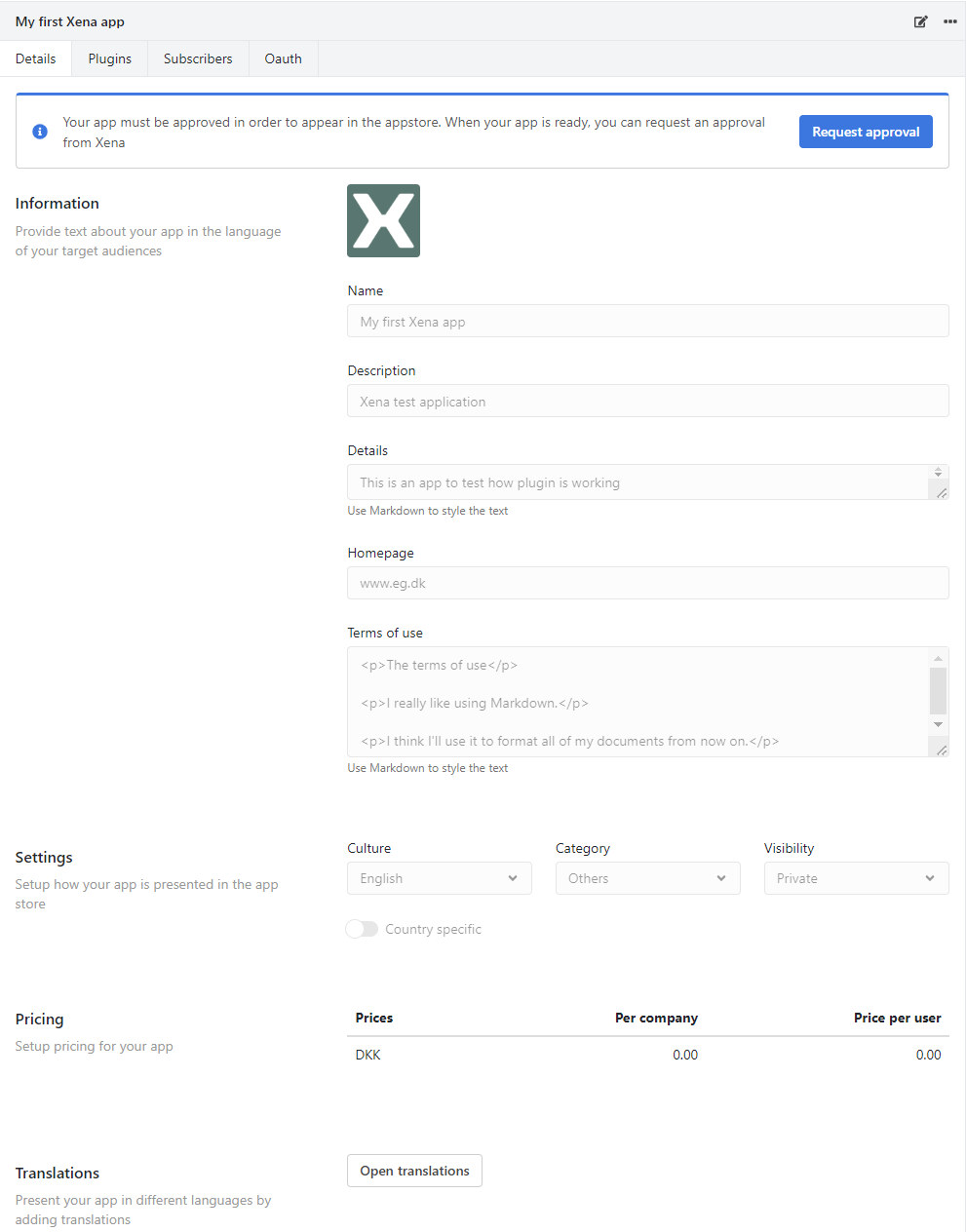
On this tab, you add the basic information about your app:

* **Logo**: If you turn to edit mode, you will be able to upload a logo to your app.
* **Name, Description, Details, and Homepage**: List the details that the user will be able to see in the appstore.
* **Terms of use**: Mandatory to fill, in order to request approval of your app.
* **Settings**: Select the basic culture, category, and visibility for this app.
* **Pricing**: Add the pricing for the app. You can add prices for different currency codes, and add a price for each company, for each user, or both.
* **Translations**: Before you open the translation dialog, make sure to save any changes you made for the app, by entering read mode (eye-icon in the top bar).

<figure><img src="https://3101502904-files.gitbook.io/~/files/v0/b/gitbook-x-prod.appspot.com/o/spaces%2F-LZdybBvJaAboIV6zNHC%2Fuploads%2FkjTVY6rB1J6kVnBFqOXT%2F2%20App%20details.png?alt=media&amp;token=6fb63e75-f29f-4642-a085-2e6a5d94f33a" alt=""><figcaption></figcaption></figure>

In the translation dialog, you will see the source language on the left side, and the translations on the right side. You can add translations for Danish, Norwegian, and English.

<figure><img src="https://3101502904-files.gitbook.io/~/files/v0/b/gitbook-x-prod.appspot.com/o/spaces%2F-LZdybBvJaAboIV6zNHC%2Fuploads%2FqrcHexo4PX9WPHZAGJnk%2F3%20App%20translation.png?alt=media&amp;token=a6e3c902-8980-49ed-a272-7d86f0bce9d0" alt=""><figcaption></figcaption></figure>

## Tab 'Plugin'

On this tab, you can add your app to the Xena UI. See this page describing [the possibilities](https://dev.xena.biz/xena-developer/development/get-started/createplugin).

<figure><img src="https://3101502904-files.gitbook.io/~/files/v0/b/gitbook-x-prod.appspot.com/o/spaces%2F-LZdybBvJaAboIV6zNHC%2Fuploads%2FteuNlyCW50ERnz9MNkNS%2F4%20App%20Plugin.png?alt=media&amp;token=2f9daf0a-bc9e-42e6-bef0-7b8e2e7e72f6" alt=""><figcaption></figcaption></figure>

## Tab 'Oauth'

The tab "Oauth" is where you set up your client credentials if you will be using the Xena API.

<figure><img src="https://3101502904-files.gitbook.io/~/files/v0/b/gitbook-x-prod.appspot.com/o/spaces%2F-LZdybBvJaAboIV6zNHC%2Fuploads%2FAhP18nFQeoTFqdQ5Jw0L%2F5%20App%20Oauth.png?alt=media&amp;token=c954a342-e698-40d2-ae59-858b38f5030e" alt=""><figcaption></figcaption></figure>

### Request Approval

At the top of the App details tab, you can request approval for your app.

When the app is approved, you will see a link to remove the app from the app store, in order to do further changes to the app.&#x20;

When you have requested approval of your app, you can send an email to: <developer@xena.biz> to make us aware that you are awaiting app approval.

<figure><img src="https://3101502904-files.gitbook.io/~/files/v0/b/gitbook-x-prod.appspot.com/o/spaces%2F-LZdybBvJaAboIV6zNHC%2Fuploads%2FXGiBt30kCgB39ezC1DMF%2F6%20Approval%20app.png?alt=media&amp;token=2678c758-6723-4c6f-ba39-fcdbeb1d6c84" alt=""><figcaption></figcaption></figure>


# The Xena API

Introduction to our REST API.

Xena’s REST-based API is documented with Swagger and can be browsed under our [API section](/xena-developer/development/overview). To use the API there are a few things you should know, so let's get started on the basics.

## Apikeys or OAuth?

The first thing that should be considered when designing an App for Xena is how authentication should be done. Xena supports two kinds of authentication and they are both useful in different scenarios. Generally speaking, the choice can be narrowed down to:

{% hint style="info" %}
Do you want to interact as a user in Xena and/or do you want your app to be cost-free for the user?
{% endhint %}

If the answer to the above question is “yes”, then OAuth is the way to go. If not, then you can use API keys.

The choice can also be based on the pros and cons of each of the methods:

[OAuth:](/xena-developer/development/get-started/using-oauth)

| Pros                                                                             | Cons                                        |
| -------------------------------------------------------------------------------- | ------------------------------------------- |
| Interact as the enduser, whatever the user can do, the app will be able to do.   | Complex implementation compared to API-keys |
| Cross-fiscalsetup actions possible.                                              | Requires App in Xenas Appstore              |
| “One click” access for the user, no setup hassle.                                |                                             |
| Role based security, your app will have the same role as the user using the app. |                                             |
| License free (No additional cost in Xena)                                        |                                             |

[API keys:](/xena-developer/development/get-started/using-xenaapikey)

| Pros                                              | Cons                                                                 |
| ------------------------------------------------- | -------------------------------------------------------------------- |
| Easy implementation compared to OAuth.            | The user has to copy/paste API-keys to your app.                     |
| It is optional to create an app in Xenas appstore | API-keys are licensed as normal user in Xena(Adds cost to the user). |
|                                                   | No access control. API-key is equal to the administrator role.       |
|                                                   | One API-key per fiscalsetup                                          |


# Authorization

Fundamentals on authorization in apps.

## About Authorization

Every request your application sends to the Xena API must include an authorization token. The token also identifies your application to Xena.

## About authorization

Every request your application sends to the Xena API must include an authorization token. The token also identifies your application to Xena.

### About authorization protocols

Your application must use OAuth 2.0 to authorize requests. No other authorization protocols are supported.

### Authorizing requests with OAuth 2.0

All requests to the Xena API must be authorized by an authenticated user.

The details of the authorization process, or "flow," for OAuth 2.0 vary somewhat depending on what kind of application you're writing.

The following general process applies to all application types:

1. When you create your application, you register it in Xena developer and use the Xena Developer Console. Xena's Identity server then provides the information you'll need later, such as a client ID and a client secret.
2. When your application needs access to user data, it asks Xena's Identity server for a particular scope of access. (see: scopes below)
3. Xena's Identity server then displays a consent screen to the user, asking them to authorize your application to access some of their data.
4. If the user approves your request, then Xena's Identity server returns to your application a short-lived access token. Access tokens granted by Xena's Identity server are valid for one hour.
5. Your application requests user data, attaching the access token to the request. All your requests to the Xena API should submit an authorization header bearer token.
6. If Xena's API determines that your request and the token are valid, it returns the requested data.
7. Some flows include additional steps, such as using refresh tokens to acquire new access tokens. For detailed information about flows for various types of applications, see [Xena's OAuth 2.0 documentation](https://github.com/EG-BRS/DevSite/tree/f65f6a98fe6cbdc3a44942a454484f130a4dc012/Fundamentals/Oauth2hybrid/README.md).

Here is a list of the OAuth 2.0 scopes for the Xena API:

| Scope           | Meaning                                                     |
| --------------- | ----------------------------------------------------------- |
| testapi         | Full, permissive scope to access all of a user's Xena data. |
| profile         | users profile information,  name, culture, picture          |
| email           | users email                                                 |
| offline\_access | returns a refresh token                                     |


# Using OAuth

Essentials on OAuth integration.

{% hint style="info" %}
See [Identity.Server.Sample.Dotnet](https://github.com/EG-BRS/Identity.Server.Sample.Dotnet/tree/master/) for a sample project.
{% endhint %}

Please refer to the GitHub repository for the code in its entirety. This sample is written in C# .NET core 2 and can be run via Docker.

First off all we need to add the OpenId middleware to the authentication configuration in `startup.cs`:

{% code title="startup.cs" %}

```csharp
 .AddOpenIdConnect(AuthenticationConstants.XenaOidcAuthenticationScheme, options =>
    {
        options.SignInScheme = CookieAuthenticationDefaults.AuthenticationScheme;
        options.ResponseType = AuthenticationConstants.OidcResponseType;

        options.SignedOutRedirectUri = "/Home/LogoutRedirect";

        options.Authority = authConfiguration.Authority;
        options.ClientId = authConfiguration.ClientId;
        options.ClientSecret = authConfiguration.ClientSecret;

        options.SaveTokens = true;
        options.RequireHttpsMetadata = false;
        options.GetClaimsFromUserInfoEndpoint = true;

        options.Scope.Add("profile"); 
        options.Scope.Add("testapi");
        options.Scope.Add("offline_access");

        options.ClaimActions.MapJsonKey(JwtClaimTypes.PreferredUserName, JwtClaimTypes.PreferredUserName);
    }
```

{% endcode %}

All the configuration is set in `appsettings.Development.json`

When the user hit any method/controller with \[Authorize] attribute he will be forced to authenticate. In our examples default challenge scheme is Xena. The user will be transferred to the login page and after the correct login will return to your app with tokens.

To communicate with the Xena API you will need to send access\_token with each call in headers.

Application `access_token` lifetime is set to 60 minutes but cookie for your app can be different. For better user experience the app can use `refresh_token` to get new `access_tokens`.

In the sample we use automatic silent renew middleware that checks and refreshes the token if needed with each call.

## API call

In sample in `XenaService.cs` we show three API calls. The user can get data about his fiscal, Xena membership and apps that he is subscribed to.

{% code title="XenaService.cs" %}

```csharp
[Authorize]
public async Task<IActionResult> ApiExample()
{
    HttpClient client = await SetupClientWithToken();
    var result = await client.GetStringAsync($"{_apiEndpoints.Xena}/User/FiscalSetup?forceNoPaging=true");
    return result;
}
```

{% endcode %}


# Using Xena Api with OAuth

Introduction to our REST API.

## Using Xena API

The basic flow looks like this:

![Flow](https://3101502904-files.gitbook.io/~/files/v0/b/gitbook-legacy-files/o/assets%2F-LZdybBvJaAboIV6zNHC%2F-LrxRqRBuD6PvAMzSQGr%2F-LrxRrVf2YD-ROtRIBZB%2Fapi_call.png?generation=1571915267165535\&alt=media)

1. The user enters your app.
2. The user encounters a place in your application where he wants to use Xena API.
3. He will be forced to login into the Xena.
4. After successful login, he will be transferred back to your app with tokens.
5. Your app can communicate with the Xena API by passing the user access\_token.

> See our [github samples here](https://github.com/EG-BRS/Identity.Server.Sample.Dotnet).\
> For more see [Identity Server sample clients](https://github.com/IdentityServer/IdentityServer4/tree/master/samples/Clients/src).

## Creation

Firstly your app needs to be registered in Xena&#x20;

Then open the app and go to tab 'OAuth'.

Click on the link to Connect, and create a new client:

<figure><img src="https://3101502904-files.gitbook.io/~/files/v0/b/gitbook-x-prod.appspot.com/o/spaces%2F-LZdybBvJaAboIV6zNHC%2Fuploads%2Fu5lDLHOsjoQsxacYHFtY%2F7%20Create%20client%20in%20OAuth.png?alt=media&amp;token=2de4023a-831d-49fa-9d30-0f775bbf1f80" alt=""><figcaption></figcaption></figure>

> You won't be able to change the grant type later

**Client Id** - Unchangeable id that your app will be recognized in Xena (whole string with .xena.biz).\
**Name** - Your app name that will be shown to the user in the consent screen.\
**Client Uri** - link to your terms of service and privacy policy during user login.

Settings:

* Enabled - you can enable/disable your connection with the app.
* Browser access - allows obtaining the access\_token through front channel communication.
* Off-line access - Used in hybrid flow to obtain refresh\_token that can be exchanged for access\_token without user interaction.

Supported grant types:

* Implicit - mainly for browser-based applications.
* Hybrid - for applications with backend where the server will communicate with the Xena API.

### Configuration

After the client creation, you will be transferred to the edit window with a few new settings:

<figure><img src="https://3101502904-files.gitbook.io/~/files/v0/b/gitbook-x-prod.appspot.com/o/spaces%2F-LZdybBvJaAboIV6zNHC%2Fuploads%2FYVpz7KKioLHd2XvQ5S0O%2F8%20Create%20client%20in%20OAuth.png?alt=media&amp;token=df6d1779-c339-4915-a48a-c53511a76cdf" alt=""><figcaption></figcaption></figure>

* Scopes - Available scopes for your app. The **testapi** scope is required for [**Xena API**](/xena-developer/development/get-started/the-xena-api) communication.
* RedirectUri - The uri of your oidc login endpoint. These **must match** in client and configuration. (For ASP default path is yourapp.com/signin-oidc)
* Post Logout Redirect Uri - After the user logs out, he will be transferred back to your app. (For ASP default path is yourapp.com/signout-callback-oidc)
* Secrets - auto-generated secret for your app (hybrid flow)


# Using WebHooks

Essentials on Xena WebHooks.

Want to know when a partner’s address changes or when an order is created - Xena Webhooks can be one solution to these situations. Basically, you register either for all updates in your fiscal setup of a given type - or listen on a specific id. Whenever something is created/updated or deleted that matches your criteria, you get a push notification to the URI, you supplied including which Id and the type of event.

Then you decide whether to fetch the data using either OAuth 2.0 or API keys to get the actual data that changed. Prime candidates for using Webhooks could be:

* Updating stock count in a webshop whenever an article is sold or purchased in Xena
* Adding a customer to an email marketing platform when created/modified in Xena
* Updating budgeting systems whenever something is bookkept in Xena
* Etc.

WebHook fundamentals

A webhook consists of three things:

* **Type** \
  The type of a WebHook defines what type of entity the webhook is triggered on. It could for instance be “Article”, then the webhook is triggered every time an article is “changed”.
* **Id (optional)**\
  The Id of a webhook limit the webhook to only be triggered for a specific entity Id. So if the webhook type is “Article” and the webhook Id is “7”, then the webhook is only triggered when something happens to the article with Id=7. If no Id is specified on the webhook, it will be triggered on ALL actions on Articles such as creates, modifications, and deletions.
* **Callback URI**\
  When the webhook triggers, this is the URL of the endpoint which is called by Xena with a HTTP POST. Within this HTTP POST is the WebHook Payload, so make sure your endpoint can handle it.

### WebHook payload&#xD;

A webhook payload consists of three properties and looks something like this:

```javascript
{
 "EntityType": "Article",
 "EntityId": 7,
 "EntityEvent": "Updated"
}
```

The above event means that the article with id 7 has been updated. The entitytype is the same as specified in the webhook itself. The Id is always present(regardless of what you defined in the webhook). There are three different events: “Updated”, “Created” and “Deleted”.

### &#xD;WebHook endpoint response&#xD;

Every webhook should ALWAYS return a successful response with `HTTP200`. The structure of the response should be:

```javascript
{
 "Success": true
}
```

The webhook trigger will be considered “not successful" if the endpoint does not respond within 5 seconds, respond with anything other than `HTTP200` or does not return the JSON data above.

### &#xD;Activating a webhook&#xD;

Using webhooks is very easy. They can either be created from the developer section or created via the API (eg. when an app is activated by the user). The WebHook API is found on the URL.

WebHook final thoughts

* Depending on the amount and type of webhooks you create, the webhooks can lead to quite a few requests. Make sure your system can handle the load!
* If your webhook endpoint does not respond within 5 seconds, it will be marked as “failed”.
* If your webhook endpoint does not respond with a `HTTP200` response containing the proper response, the request will be marked as “failed”  .
* If there are more than 10 failed webhook triggers within a 10-minute period, the webhook will be disabled for 1 hour to prevent Xena from DDOS’ing your system.


# Using Websync

Yet to be described


# Using Xena API Key

Essentials on Xena API Keys integration.

{% hint style="warning" %}
**API keys are to be deprecated.** \
As part of our ongoing efforts to improve security, we're in the process of fully integrating OAuth support into the Xena platform.&#x20;

This update will bring a number of benefits, including improved security measures, and increased flexibility to how developers can get access and manage data in Xena. As a result, we will be phasing out the usage of API keys in the future.

To make the transition as smooth and seamless as possible, we will provide notice and detailed guidance to you, before the deprecation of API keys will take place.

You can always stay updated by following our blog: <https://xena.biz/da/blog/>
{% endhint %}

## Creating Xena API keys

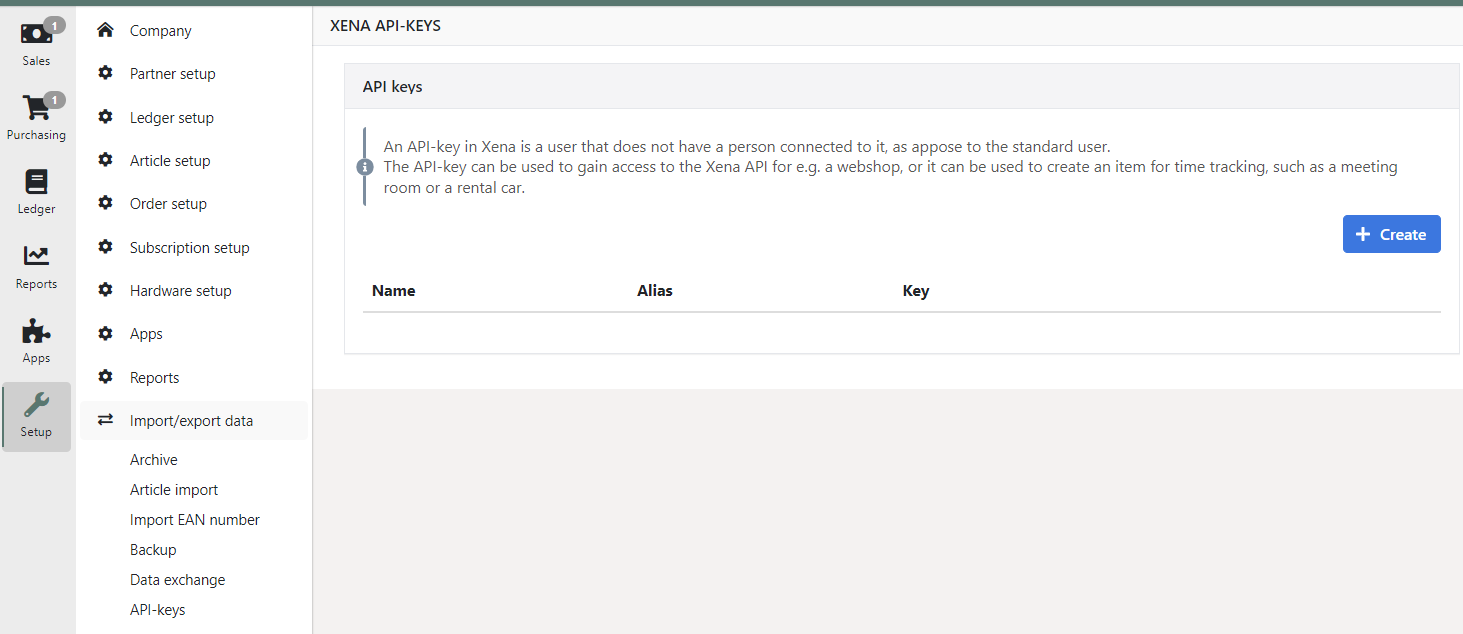
After you log in, enter the menu Setup > Import/export data > API-keys

<figure><img src="https://3101502904-files.gitbook.io/~/files/v0/b/gitbook-x-prod.appspot.com/o/spaces%2F-LZdybBvJaAboIV6zNHC%2Fuploads%2FE3jebWG89l1al1aIUphC%2F9%20API%20key.png?alt=media&amp;token=172a0d89-59a0-4db9-8bf6-4f4d72312615" alt=""><figcaption></figcaption></figure>

## API call

To call the Xena API you need a header called `XenaApiKey: [KEY]` and that's it.

![Insomnia GET request with API Key.](https://3101502904-files.gitbook.io/~/files/v0/b/gitbook-legacy-files/o/assets%2F-LZdybBvJaAboIV6zNHC%2F-M0w9V2Myb5JPx57kX0S%2F-M0w9VgTZuvfW7hEpllJ%2FxenaApiKeyInsomniaGetExample.png?generation=1582631098140399\&alt=media)


# Creating plugins

Basics on creating plugins for Xena.

If you don't have registered an app in Xena see [Register your app](/xena-developer/development/get-started/createapplication) for instructions.

After you have successfully registered your app in Xena go to Apps > Developer find your app and open it. From here you can change the settings around your app. Click on the Plugin tab on the right side of the window. Now you see the list of plugins you have added to your app, from here you can also create new plugins.

## What is a plugin?

An app in Xena consists of plugins. A plugin can be a main menu item, main menu group, tab, or widget. We show plugins inside iFrames in Xena. We call these places "plugin placements" which you can select when creating your plugin.

## Fields for a plugin

Which fields are required depends on the setting type and context menu in the creation form.

### Title

Title for the plugin. This title is used as a title on widgets, tabs, buttons, menus, etc.

### Index

Index for the plugin. This field is used to order the menu items or tabs.

### Icon CSS class

Used for menu items. Specify a CSS class for a FontAwesome5 icon Specify both the type class and icon class. For the solid wrench icon that would be `fas fa-wrench`

### Type

The type of a plugin describes which type of view the plugin is related to. See it as a form of *main placement* *Main menu item* for the plugin in the main menu. *Partner overview* for a tab or widget inside the Partner overview

### Menu Group

Grouping of menu items or placement at the root level. Most often placed at the root level would be available here.

### Context menu

Where to place plugin under *Type* (main placement) For menu items this would be other main menu items that your plugin could be placed under.

### External URI

Specify the location of the plugin. *HTTPS is required*. Placeholders for Xena data is available

| Placeholder | Value                 |
| ----------- | --------------------- |
| {fid}       | Current FiscalSetupId |
| {eid}       | Current EntityId      |
| {rid}       | Current ResourceId    |
| {uid}       | Current UserId        |
| {lcid}      | Current culture       |

A live example of the URI will be shown while typing.

### Security (available after May 29th, 2020)

The plugin is visible to the user using an iFrame. As per default, scripts are allowed in our iframes.

| Xena Default | Attribute                      | Description                                                                          |
| ------------ | ------------------------------ | ------------------------------------------------------------------------------------ |
| \[x]         | allow-same-origin              | (Xena default for our own plugins)                                                   |
| \[x]         | allow-scripts                  | Allow plugin to run javascript in sandbox. Set by default for our provided plugin.js |
| \[ ]         | allow-forms                    | Allows form submission from plugin                                                   |
| \[ ]         | allow-popups                   | Allows popups inside sandbox (ie. new windows)                                       |
| \[ ]         | allow-popups-to-escape-sandbox | Allow popups from plugin to escape sandbox                                           |
| \[ ]         | allow-modals                   | Allow to open modal windows from plugin                                              |
| \[ ]         | allow-downloads                | Allow plugin to initiate downloads                                                   |

Xena Defaults can't be changed!

If your app initiates downloads from a plugin then go to that specific plugin and check the security setting regarding download. Be aware that by allowing this sandbox attributes your app can become insecure! Add only the attributes that are absolutely needed for your plugin.

## Styling the plugins

If you want to reuse Xena’s look’n’feel inside your plugin you can reference a subset of our stylesheet designed for plugins. Please review our design guide to learn more.

```markup
<link href="https://my.xena.biz/Content/css/xena-plugin.css" rel="stylesheet" />
```

{% content-ref url="/pages/-L\_7--oVjdh\_pwaAgRHl" %}
[Design Guide](/xena-developer/user-interface/styleguide)
{% endcontent-ref %}

## Interact with Xena frontend.

Xena provides the possibility to open Xena modules inside Xena from a plugin. To interact the plugin should include this small snippet of JavaScript in `<head>` tag.

```markup
<script src="https://my.xena.biz/scripts/xena.plugin.js"></script>
```

### Alert

`openAlert` has two optional parameters `message` and `title`. When called an alert dialog will be shown in Xena. Syntax: `Xena.openAlert(message: string = '', title: string = '')`

**Example**

```
Xena.openAlert('You have reached todays limit', 'Wooops!');
```

![Example of an alert inside Xena](https://i.imgur.com/8fxVOfu.png)

### Confirm

`openConfirm` has one required and two optional parameters. The first parameter is the callback which you will receive `true` if the user clicks "OK" and `false` if the user clicks "Cancel" or closes the confirm box. Syntax: `Xena.openConfirm(callback: (result: boolean) => any, message: string = '', title: string = '')`

**Example**

```
Xena.openConfirm(function(result) {
  console.log('User confirmed', result);
}, 'Can you confirm this? :-)', 'Please confirm');
```

![enter image description here](https://i.imgur.com/fUl3IGG.png)

### Popup

`openPopup` has two required and one optional parameter. The first parameter is the callback when the popup is closed. Either by the user or by your plugin. When the user closes the plugin from within Xena (via ESC-key) the callback with be called with null as the result argument: `callback(null)`. Inside your plugin, you can call `closePopup`with an optional parameter. This parameter can be used to send a result from your modal page to your page that initiated the modal.

Syntax: `Xena.openPopup(callback: (result: any) => any, url: string, title: string = '')`

Syntax: `Xena.closePopup(result: any = null)`

**Example**

Plugin page

```
Xena.openPopup(function(result) {
  console.log('Result:', result);
}, '{link-to-your-iframe}', 'Plugin Iframe in Modal');
```

Plugin iFrame page

```
Xena.closePopup({ status:  'Closed from iframe' });
```

![enter image description here](https://i.imgur.com/dk9HbLS.png) When closing the modal on the button tied to the `Xena.closePopup` example the Plugin page will console.log the following `Result: {status: "Closed from iframe"}`.

### Sizing plugins

The content of any plugin should always be responsive! So make sure that your plugins work with any width. Xena will automatically try to calculate the height of the plugins. But it is possible to overwrite this calculation by overwriting `Xena.getHeight`.

Syntax: `Xena.getHeight: () => number` **Example**

```
Xena.getHeight = function() {
  return 200;
}
```


# Samples

Use this sample code snippets to jump start your development in Xena.

We have prepered a few samples:

* [Hybrid flow in ASP.NET core app](https://github.com/EG-BRS/Identity.Server.Sample.Dotnet/tree/master/HybridMVC.Core)
* [Hybrid flow in ASP.NET classic app](https://github.com/EG-BRS/Identity.Server.Sample.Dotnet/tree/master/HybricMVC.NetFramework)
* [Hybrid flow in PHP app](https://github.com/EG-BRS/Xena.ExampleApp.PHP)
* [Implicit flow in ASP.NET core app](https://github.com/EG-BRS/Identity.Server.Sample.Dotnet/tree/master/ImplicitMVC.Core)
* [Implicit flow in javascript app](https://github.com/EG-BRS/Identity.Server.Sample.Dotnet/tree/master/ImplicitJavascript)

To run these samples you will have to [create an application in Xena](/xena-developer/development/get-started/createapplication) and [configure it](/xena-developer/development/get-started/xena-api-using-oauth).

In the samples you will need to change \[Client ID] and secret if you chose Hybrid flow. On the [Xena OAuth configuration](/xena-developer/development/get-started/xena-api-using-oauth) page you will need to setup proper redirect uri.


# API documentation

{% hint style="info" %}
For a complete overview of the Xena API, please go to <https://xena.biz/api-doc/>
{% endhint %}

WPI

Xena is divided into diffrent APIs.

| Name          | Description                                                      | Support API keys | CQRS              |
| ------------- | ---------------------------------------------------------------- | ---------------- | ----------------- |
| Xena          | The Old core API of Xena. Contains all of the core ERP functions | Yes              | On some endpoints |
| Cars (Giulia) | All function relation to handling cars                           | No               | Yes               |
| Cars (Giulia) | All function relation to handling cars                           | No               | Yes               |
| Cars (Giulia) | All function relation to handling cars                           | No               | Yes               |
| Cars (Giulia) | All function relation to handling cars                           | No               | Yes               |
| Cars (Giulia) | All function relation to handling cars                           | No               | Yes               |

## How to find the needed API

The easiest way to find the needed API is to looking at how the Xena client gets information. You can do that with the developer tools in your own browser.

1. Find the page in Xena with the info you need.
2. Open the developer tools in your browser (F12 in Chrome)
3. Find the network tab and activate the XHR filter

   ![devtab](https://3101502904-files.gitbook.io/~/files/v0/b/gitbook-legacy-files/o/assets%2F-LZdybBvJaAboIV6zNHC%2F-Lr84LPwDp-0j3VTp2Jh%2F-Lr84MSvXEhJkxk8g3I1%2Fdevtab.png?generation=1571036695802978\&alt=media)
4. Refresh the page (F5)
5. Now you an see all the requests our client makes to the different API.

   ![devnetwork](https://3101502904-files.gitbook.io/~/files/v0/b/gitbook-legacy-files/o/assets%2F-LZdybBvJaAboIV6zNHC%2F-Lr85VUtC7i8zy_XVlmI%2F-Lr85WMTBTvXCx-s285w%2Fdevnetwork.png?generation=1571036993871846\&alt=media)

   You can ignore websync and FiscalNotificationCount.


# Xena

A walk-through of the most common actions in Xena, done via our API.

{% hint style="info" %}
For a complete overview of the Xena API, please go to <https://xena.biz/api-doc/>
{% endhint %}

## How the create a partner

A partner in Xena can be used as a creditor, debtor and/or employee. The idea behind this is to avoid duplicate data and to give our customers a better overview of all of their business with a specific partner. If a partner is a creditor, it will have a *customer context* connected. If a partner is a debtor, it will have a *supplier context* connected. A partner can have more than one context. When you make a lookup on a specific partner, you will get info about the contexts associated.

```javascript
GET https://my.xena.biz/Api/Fiscal/{fiscalId}/Partner/{partnerId}
{
	...
	"SupplierId": {Supplier context id},
	"CustomerId": {customer context id},
	"ResourceId": {resource context id},
	...
}
```

This is important to understand when you create a new partner. If you use the default endpoint, the partner will be created without any contexts.

{% hint style="info" %}
There are two ways to creating a partner. The first method requires two API calls. The second method can only create a customer or supplier but only requires one API call.
{% endhint %}

## Create a partner without any context

<mark style="color:green;">`POST`</mark> `https://my.xena.biz/Api/Fiscal/{fiscalId}/Partner`

Create a basic partner without any customer or supplier context. See the full dto here:\
<https://github.com/EG-BRS/Xena.Contracts/blob/development/src/Xena.Contracts/Domain/PartnerDto.cs>

#### Path Parameters

| Name     | Type   | Description                                        |
| -------- | ------ | -------------------------------------------------- |
| FiscalId | string | Id of the fiscal you want to create the partner in |

#### Request Body

| Name                     | Type    | Description |
| ------------------------ | ------- | ----------- |
| DefaultDeliveryAddressId | string  |             |
| Address                  | object  |             |
| ReferenceUserId          | integer |             |
| Attention                | string  |             |
| PartnerType              | string  |             |
| PhoneNumber              | string  |             |
| Note                     | string  |             |
| GLNNumber                | string  |             |
| OrgNumber                | string  |             |
| SupplierId               | integer |             |
| CustomerId               | integer |             |
| ResourceId               | integer |             |

{% tabs %}
{% tab title="200 " %}

```
{
	"Version": 1,
	"IsDeactivated": false,
	"FiscalSetupId": 97190,
	"CreatedAt": "2019-11-26T10:25:53.307Z",
	"AccountNumber": 10229,
	"Address": {
		"City": "Aarhus",
		"CountryName": null,
		"PlaceName": "string",
		"Street": "string",
		"Zip": "8000",
		"Name": "string",
		"Description": "string - string, 8000 Aarhus",
		"CountryDisplayName": null
	},
	"ReferenceFiscalSetupId": null,
	"ReferenceUserId": null,
	"Attention": "string",
	"PartnerType": "xena_partnertype_company",
	"PartnerTypeTranslated": "Company",
	"PhoneNumber": "string",
	"Note": "string",
	"URL": null,
	"GLNNumber": "string",
	"OrgNumber": "string",
	"SupplierId": null,
	"CustomerId": null,
	"ResourceId": null,
	"DefaultDeliveryAddressId": null,
	"ShortDescription": "10229",
	"LongDescription": "10229 - string",
	"Tags": [],
	"Id": 520618279
}
```

{% endtab %}
{% endtabs %}

This will create a new partner in Xena. In Xena, the partner can be converted to a customer, supplier or/and employee. If you want to add a context you can use the following endpoint.

## Create a partner context

<mark style="color:green;">`POST`</mark> `https://my.xena.biz/Api/Fiscal/{fiscalId}/PartnerContext`

Create a supplier or customer context for a given partner.

#### Request Body

| Name         | Type    | Description                                               |
| ------------ | ------- | --------------------------------------------------------- |
| ContextType  | string  | ContextType\_Customer or ContextType\_Supplier            |
| PartnerId    | integer | Id of the partner                                         |
| InvoiceEmail | string  | The email that will be suggested when creating an invoice |

{% tabs %}
{% tab title="200 " %}
{% tabs %}
{% tab title="Supplier context" %}

```
{
	"Version": 1,
	"IsDeactivated": false,
	"FiscalSetupId": 97190,
	"CreatedAt": "2019-11-26T12:52:50.89Z",
	"ContextType": "ContextType_Supplier",
	"PartnerId": 365830428,
	"TermsOfPayment": {
		"Offset": 15,
		"DueType": "xena_running_month",
		"Description": "Running month + 15 days"
	},
	"CurrencyAbbreviation": "DKK",
	"InvoiceEmail": "",
	"OfferReportLayoutId": null,
	"DeliveryReportLayoutId": null,
	"InvoiceReportLayoutId": null,
	"ConfirmationReportLayoutId": null,
	"PriceGroupId": null,
	"Culture": "da-DK",
	"DefaultArticleGroupId": null,
	"DefaultLedgerTagId": null,
	"DefaultVatId": null,
	"DefaultLedgerAccount": null,
	"PaymentMeansType": null,
	"PaymentMeansTypeTranslated": "",
	"Account": null,
	"AccountIdentifier": null,
	"AccountLabelTranslated": "",
	"AccountIdentifierLabelTranslated": "",
	"GroupPayments": false,
	"DefaultPaymentMessage": null,
	"PartnerName": null,
	"DefaultVatAbbreviation": null,
	"PriceGroupDescription": null,
	"ArticleGroupDescription": null,
	"LedgerTagNumber": null,
	"LedgerTagDescription": null,
	"OfferReportLayoutName": null,
	"DeliveryReportLayoutName": null,
	"InvoiceReportLayoutName": null,
	"ConfirmationReportLayoutName": null,
	"CurrencyDescription": "Danish Krone",
	"ContextDescription": "Supplier",
	"CultureDisplayName": "Danish (Denmark)",
	"DefaultBookkeepingText": "",
	"Id": 520693898
}
```

{% endtab %}

{% tab title="Customer context" %}

```
{
	"Version": 1,
	"IsDeactivated": false,
	"FiscalSetupId": 97190,
	"CreatedAt": "2019-11-26T12:54:12.233Z",
	"ContextType": "ContextType_Customer",
	"PartnerId": 516783821,
	"TermsOfPayment": {
		"Offset": 8,
		"DueType": "xena_nett",
		"Description": "Net + 8 days"
	},
	"CurrencyAbbreviation": "DKK",
	"InvoiceEmail": "",
	"OfferReportLayoutId": null,
	"DeliveryReportLayoutId": null,
	"InvoiceReportLayoutId": null,
	"ConfirmationReportLayoutId": null,
	"PriceGroupId": null,
	"Culture": "da-DK",
	"DefaultArticleGroupId": null,
	"DefaultLedgerTagId": null,
	"DefaultVatId": null,
	"DefaultLedgerAccount": null,
	"PaymentMeansType": null,
	"PaymentMeansTypeTranslated": "",
	"Account": null,
	"AccountIdentifier": null,
	"AccountLabelTranslated": "",
	"AccountIdentifierLabelTranslated": "",
	"GroupPayments": false,
	"DefaultPaymentMessage": null,
	"PartnerName": null,
	"DefaultVatAbbreviation": null,
	"PriceGroupDescription": null,
	"ArticleGroupDescription": null,
	"LedgerTagNumber": null,
	"LedgerTagDescription": null,
	"OfferReportLayoutName": null,
	"DeliveryReportLayoutName": null,
	"InvoiceReportLayoutName": null,
	"ConfirmationReportLayoutName": null,
	"CurrencyDescription": "Danish Krone",
	"ContextDescription": "Customer",
	"CultureDisplayName": "Danish (Denmark)",
	"DefaultBookkeepingText": "",
	"Id": 520619084
}
```

{% endtab %}
{% endtabs %}
{% endtab %}
{% endtabs %}

## Create a partner as a customer and/or supplier

<mark style="color:green;">`POST`</mark> `https://my.xena.biz/Api/Fiscal/{fiscal}/Partner/Search`

To avoid making two requests when creating a customer or supplier, this endpoint can be used.

#### Request Body

| Name                          | Type    | Description                                                                                                                       |
| ----------------------------- | ------- | --------------------------------------------------------------------------------------------------------------------------------- |
| CustomerTermsOfPaymentOffset  | integer | Days or months the customer have to pay the invoice                                                                               |
| CustomerTermsOfPaymentDueType | string  | xena\_cash, xena\_nett, xena\_running\_month or xena\_prepaid                                                                     |
| SupplierTermsOfPaymentOffset  | integer | Days or months on supplier payment terms                                                                                          |
| SupplierTermsOfPaymentDueType | string  | xena\_cash, xena\_nett, xena\_running\_month or xena\_prepaid                                                                     |
| SendInvite                    | boolean | Leave this as false                                                                                                               |
| Provider                      | integer | Leave this as null                                                                                                                |
| ProviderId                    | integer | Leave this as null                                                                                                                |
| PartnerType                   | string  | <p>xena\_partnertype\_person if the partner is a private customer.<br>xena\_partnertype\_company if the partner is a company.</p> |
| Email                         | string  | Customer mail                                                                                                                     |
| Attention                     | string  | Partner att                                                                                                                       |
| OrgNumber                     | string  | Company registration number (CVR in DK)                                                                                           |
| GLNNumber                     | string  | Number used for electronic invoicing                                                                                              |
| Name                          | string  | Partner name                                                                                                                      |
| PhoneNumber                   | string  | Partner phone number                                                                                                              |
| Street                        | string  | Street                                                                                                                            |
| PlaceName                     | string  | Place name                                                                                                                        |
| Zip                           | string  | Postal code                                                                                                                       |
| City                          | string  | City                                                                                                                              |
| CountryName                   | string  | ISO countrycode (DK, NO, SE etc.)                                                                                                 |
| IsCustomer                    | boolean | If this is True then a Customer context will be added to the partner                                                              |
| IsCupplier                    | boolean | If this is True then a Supplier context will be added to the partner.                                                             |

{% tabs %}
{% tab title="200 " %}

```
Teh fu
```

{% endtab %}
{% endtabs %}

The full model can be found here:\
<https://github.com/EG-BRS/Xena.Contracts/blob/development/src/Xena.Contracts/Helpers/PartnerSearchDto.cs>

## How to create an order and add articles

In this section we will show you how to create an order and add an article to that order. This can be done with the following steps:

1. Create the order
2. Find the order task or add an order task
3. Add a line to the order task
4. Update the order line with an article

In the following sections we will describe the needed endpoints.

## Create an order

<mark style="color:green;">`POST`</mark> `https://my.xena.biz/Api/Fiscal/{fiscalId}/Order`

First step is to create a new order.

#### Request Body

| Name         | Type    | Description                                                                                                                                                       |
| ------------ | ------- | ----------------------------------------------------------------------------------------------------------------------------------------------------------------- |
| InternalNote | string  | Just the internal note.                                                                                                                                           |
| CreateTask   | boolean | If true an ordertask will be created.                                                                                                                             |
| OrderNumber  | integer | This should be null. Only set this if you know what you are doing! This can be relevant if the order is born with a number in some other system (e.g. a webshop). |
| ProjectId    | integer | Id of the assosiated project. *Only relevant for users of the project module.*                                                                                    |
| PartnerId    | integer | Id of the Customer or Supplier on the order.                                                                                                                      |
| ContextType  | string  | Whether it should be a Sales order (ContextType\_Customer) or Purchase order (ContextType\_Supplier)                                                              |

{% tabs %}
{% tab title="200 " %}

```
{
    "Version": 1,
    "IsDeactivated": false,
    "FiscalSetupId": 98824,
    "CreatedAt": "2019-11-21T18:48:14.583Z",
    "PartnerId": null,
    "OurReference": "Niels Husted",
    "YourReference": "",
    "ContextType": "ContextType_Customer",
    "Address": {
        "City": "",
        "CountryName": "DK",
        "PlaceName": "",
        "Street": "",
        "Zip": "",
        "Name": "",
        "Description": " -  ",
        "CountryDisplayName": "Denmark"
    },
    "DeliveryAddress": null,
    "DeliveryNote": null,
    "OrderNumber": 200009,
    "DateDays": 18221,
    "DeliveryDateDays": null,
    "CurrencyAbbreviation": "DKK",
    "OfferReportLayoutId": null,
    "DeliveryReportLayoutId": null,
    "InvoiceReportLayoutId": null,
    "ConfirmationReportLayoutId": null,
    "OfferReportLayoutName": null,
    "DeliveryReportLayoutName": null,
    "InvoiceReportLayoutName": null,
    "ConfirmationReportLayoutName": null,
    "GLNNumber": null,
    "InternalNote": "",
    "TermsOfPayment": {
        "Offset": 8,
        "DueType": "xena_nett",
        "Description": "Net + 8 days"
    },
    "Culture": "da-DK",
    "ProjectId": null,
    "ResponsibleId": 194833467,
    "ResponsibleName": "Niels Husted",
    "InvoiceEmail": "",
    "PartnerAccountNumber": null,
    "PartnerName": null,
    "PartnerNote": null,
    "PartnerPhoneNumber": null,
    "PartnerType": null,
    "Summary": {
        "Totals": {
            "PriceNettTotal": 0.0,
            "CostTotal": 0.0,
            "DiscountTotalRatio": 0.0,
            "DiscountTotalPct": 0.0,
            "DiscountTotal": 0.0,
            "MarginTotal": 0.0,
            "MarginTotalRatio": 0.0,
            "MarginTotalPct": 0.0,
            "VatEstTotal": 0.0
        },
        "NotInvoicedTotals": {
            "PriceNettTotal": 0.0,
            "CostTotal": 0.0,
            "DiscountTotalRatio": 0.0,
            "DiscountTotalPct": 0.0,
            "DiscountTotal": 0.0,
            "MarginTotal": 0.0,
            "MarginTotalRatio": 0.0,
            "MarginTotalPct": 0.0,
            "VatEstTotal": 0.0
        },
        "IsFullyInvoiced": false,
        "IsFullyDelivered": false,
        "IsFullyConfirmed": false,
        "CanOffer": false,
        "CanDeliver": false,
        "CanInvoice": false,
        "CanPay": false,
        "CanConfirm": false
    },
    "OrderInvoiceNumbers": [],
    "DepartmentId": null,
    "DepartmentDescription": null,
    "BearerId": null,
    "BearerDescription": null,
    "PurposeId": null,
    "PurposeDescription": null,
    "IsHeaderReadOnly": false,
    "OrderStatusId": 196093425,
    "OrderStatusName": "Oprettet",
    "OrderStatusColor": "#eac100",
    "ProjectDescription": null,
    "ProjectNumber": null,
    "OrderDeliveryStatus": "SalesOrderDeliveryStatus_NotApplicable",
    "CultureDisplayName": "Danish (Denmark)",
    "LastInvoicedDateDays": null,
    "SupplierInvoiceDateDays": null,
    "SupplierInvoiceNumber": null,
    "SupplierPaymentId": null,
    "Id": 518338659
}
```

{% endtab %}

{% tab title="302 Beskrivelse xxx" %}
{% tabs %}
{% tab title="OK" %}

```
{
ok json
}
```

{% endtab %}

{% tab title="Error" %}

```
{
error json
}
```

{% endtab %}
{% endtabs %}
{% endtab %}
{% endtabs %}

{% hint style="info" %}
Save the Id - you will need it later.
{% endhint %}

You can find the full model [here](https://github.com/EG-BRS/Xena.Contracts/blob/development/src/Xena.Contracts/Domain/OrderDto.cs)

Articles/lines are not added directly to the order but to an *order task*. One order can have several order tasks. The next step is to get the tasks and add articles to them.

## Get order tasks

<mark style="color:blue;">`GET`</mark> `https://my.xena.biz/Api/Fiscal/{fiscalId}/Order/{orderId}/OrderTask?ForceNoPaging=true&Page=0&PageSize=100&ShowDeactivated=false`

First you need to find the order task that you want to add the article to. If `CreateTask` was `true` when you created the order then the order will have one task already. To find the Id of that order task you need to get the list of order tasks. You will get a `PagedResultSet` with a list of `OrderTaskDTO` in Entities property from the endpoint.

#### Path Parameters

| Name            | Type    | Description                                              |
| --------------- | ------- | -------------------------------------------------------- |
| ShowDeactivated | boolean | Leave this as false                                      |
| Page            | integer | Page number                                              |
| ForceNoPaging   | boolean | If you set this as True then you will deactivate pageing |
| PageSize        | integer | Page size                                                |
| orderId         | string  | Internal order id                                        |

{% tabs %}
{% tab title="200 " %}

```
{
    "Count": 1,
    "Entities": [{
        "Version": 1,
        "IsDeactivated": false,
        "FiscalSetupId": 98824,
        "CreatedAt": "2019-11-25T18:37:10.673Z",
        "OrderId": 520562489,
        "OrderContextType": "ContextType_Customer",
        "PrintDetails": false,
        "Details": "",
        "Description": "",
        "OrderTaskStatusId": 196020703,
        "Totals": {
            "PriceNettTotal": 0.0,
            "CostTotal": 0.0,
            "DiscountTotalRatio": 0.0,
            "DiscountTotalPct": 0.0,
            "DiscountTotal": 0.0,
            "MarginTotal": 0.0,
            "MarginTotalRatio": 0.0,
            "MarginTotalPct": 0.0,
            "VatEstTotal": 0.0
        },
        "Address": {
            "City": "",
            "CountryName": "DK",
            "PlaceName": "",
            "Street": "",
            "Zip": "",
            "Name": "",
            "Description": " -  ",
            "CountryDisplayName": "Denmark"
        },
        "DeliveryAddress": null,
        "OrderTaskStatusName": "Igangværende",
        "OrderTaskStatusColor": "#9cce6f",
        "OrderNumber": 200015,
        "Index": 1,
        "SubscriptionId": null,
        "IsInvoiced": false,
        "IsDelivered": false,
        "IsConfirmed": false,
        "IsReadonly": false,
        "Abbreviation": "200015-1",
        "ProjectId": null,
        "ProjectClosedDateDays": null,
        "AppointmentCount": 0,
        "IsPlanned": false,
        "Id": 520556331
    }]
}
```

{% endtab %}
{% endtabs %}

## Find an order task

<mark style="color:green;">`POST`</mark> `https://my.xena.biz/Api/Fiscal/{fiscalId}/OrderTask`

If there are no ordertasks on the order or you want to create a new one, you can use this endpoint.

#### Path Parameters

| Name    | Type    | Description                                         |
| ------- | ------- | --------------------------------------------------- |
| OrderId | integer | Id for the order you want to create an ordertask on |

{% tabs %}
{% tab title="200 Xena will return this model to you:" %}

```
```

{% endtab %}
{% endtabs %}

{% hint style="info" %}
You should save the Id.
{% endhint %}

## Create an order task line

<mark style="color:green;">`POST`</mark> `https://my.xena.biz/Api/Fiscal/{fiscalId}/OrderLine`

Now you are ready to add an article to the order task. To do this, you will need the id of the article and to create an *order line*. Here, we assume you got an article id. Start by creating a new order task line.

#### Request Body

| Name        | Type   | Description |
| ----------- | ------ | ----------- |
| OrderTaskId | string |             |

{% tabs %}
{% tab title="200 You should save the data since you will need it when updating the line with the article id." %}

```
{
	"Version": 1,
	"IsDeactivated": false,
	"FiscalSetupId": 98824,
	"CreatedAt": "2019-11-25T19:05:54.163Z",
	"OrderId": 520562489,
	"OrderContextType": "ContextType_Customer",
	"PrintDetails": false,
	"Details": "",
	"Description": "",
	"OrderTaskStatusId": 196020703,
	"Totals": {
		"PriceNettTotal": 0.0,
		"CostTotal": 0.0,
		"DiscountTotalRatio": 0.0,
		"DiscountTotalPct": 0.0,
		"DiscountTotal": 0.0,
		"MarginTotal": 0.0,
		"MarginTotalRatio": 0.0,
		"MarginTotalPct": 0.0,
		"VatEstTotal": 0.0
	},
	"Address": {
		"City": "",
		"CountryName": "DK",
		"PlaceName": "",
		"Street": "",
		"Zip": "",
		"Name": "",
		"Description": " -  ",
		"CountryDisplayName": "Denmark"
	},
	"DeliveryAddress": null,
	"OrderTaskStatusName": "Igangværende",
	"OrderTaskStatusColor": "#9cce6f",
	"OrderNumber": 200015,
	"Index": 2,
	"SubscriptionId": null,
	"IsInvoiced": false,
	"IsDelivered": false,
	"IsConfirmed": false,
	"IsReadonly": false,
	"Abbreviation": "200015-2",
	"ProjectId": null,
	"ProjectClosedDateDays": null,
	"AppointmentCount": 0,
	"IsPlanned": false,
	"Id": 520556332
}
```

{% endtab %}
{% endtabs %}

## Update an order task line

<mark style="color:orange;">`PUT`</mark> `https://my.xena.biz/Api/Fiscal/{fiscalId}/OrderLine/{orderlineId}`

To update the line, make the this request. The important fields are `ArticleId`, `Quantity` and `Description`.

#### Path Parameters

| Name        | Type    | Description                             |
| ----------- | ------- | --------------------------------------- |
| orderlineId | integer | Id of the line order you want to update |

{% tabs %}
{% tab title="200 " %}

```
{
	"Version": 2,
	"IsDeactivated": false,
	"FiscalSetupId": 98824,
	"CreatedAt": "2019-11-25T19:18:42.527Z",
	"LocationId": null,
	"OrderInvoiceTaskId": null,
	"OrderTaskId": 520556332,
	"OrderId": 520562489,
	"ProjectId": null,
	"Index": 0,
	"ArticleId": 195803359,
	"InvoiceDateDays": null,
	"CostEach": 0.00000,
	"Description": "Ydelser sats 1",
	"PriceEach": 0.00000,
	"Quantity": 1.00000,
	"UnitId": 195796629,
	"PayerId": null,
	"PayerAccountNumber": null,
	"UnitAbbreviation": "timer",
	"ArticleNumber": "yde1",
	"Totals": {
		"PriceNettTotal": 0.00000,
		"CostTotal": 0.00000,
		"DiscountTotalRatio": 0.0,
		"DiscountTotalPct": 0.0,
		"DiscountTotal": 0.00000,
		"MarginTotal": 0.00000,
		"MarginTotalRatio": 0.0,
		"MarginTotalPct": 0.0,
		"VatEstTotal": 0.00000
	},
	"ArticleGroupId": 195796691,
	"ArticleVariantId": null,
	"ArticleGroupDescription": "Ydelser",
	"ArticleHasInventoryManagement": false,
	"ArticleHasVariants": false,
	"ArticleInternalNote": null,
	"ArticleIsBundle": false,
	"ArticleVariantAbbreviation": null,
	"ArticleWeight": null,
	"LocationAbbreviation": null,
	"ArticleStatus": null,
	"OrderDeliveryTransactionId": null,
	"ArticleMappingId": null,
	"ArticleMappingQuantity": null,
	"PartnerArticleNumber": null,
	"IsConfirmed": false,
	"ArticleAbbreviation": "yde1",
	"IsDelivered": false,
	"ArticleIsDeactivated": false,
	"AverageCostPrice": null,
	"EstimatedCostTotal": 0.00000,
	"OrderLineStatusColor": null,
	"OrderLineStatusName": null,
	"HasLinkedLines": false,
	"Id": 520557490
}
```

{% endtab %}
{% endtabs %}

## How to create an invoice

\[Coming up]


# Cars (Giulia)

(Under construction)


# Articles & prices (Gaia)

(Under construction)


# Xena Design System

Introducing XenaDS, a UI component library for all platforms

We have been busy working on a new UI component library for Xena and thirt parties. It works with all frameworks. It's fully customizable with CSS. And it's built with accessibility in mind.

Learn more and give it a spin

{% embed url="<https://ds.xena.biz>" %}


# Use our stylesheet

Use Xena's stylesheet in your apps.

{% hint style="info" %}
Now we have a design system with customizable web components. [Learn more here](/xena-developer/user-interface/xena-design-system)
{% endhint %}

Xena strives for a unified and simple look. This help us build a UI that is easy to use and have recognizable patterns. Because Xena is used by a wide variety of businesses we have to take backward compatibility into consideration.

Xenas [layout and classes](/xena-developer/user-interface/styleguide/layout) are *based* on Bootstrap version 3.3. For icons [we use Font Awesome 5 Pro](/xena-developer/user-interface/styleguide/icons). And we have our own styling as well.

If you want to reuse Xena’s look’n’feel in your plugins, you can reference a subset of our stylesheet designed for plugins:

```markup
<link href="https://my.xena.biz/Content/css/xena-plugin.css" rel="stylesheet" />
```

{% content-ref url="/pages/-Lnquyh0YNGRux-zWs9I" %}
[User experience](/xena-developer/the-possibilities/user-experience)
{% endcontent-ref %}


# Design Guide

Learn how to build views with good UX.


# Alerts and warnings

Display information and warnings in a clear way.

We operate with four types of information: Info, Warning, Danger and Success. Here they are represented in alerts:

![Alert message](https://3101502904-files.gitbook.io/~/files/v0/b/gitbook-legacy-files/o/assets%2F-LZdybBvJaAboIV6zNHC%2F-LZo11WZvNq_81cRVPJ9%2F-LZo12i04gil81OKMxoG%2Falerts.PNG?generation=1551356149358342\&alt=media)

```markup
<div class="alert alert-info">
    <button type="button" class="close"><i class="icon-close"></i></button>
    <p>Alert message <a href="#" class="alert-link">with link</a>.</p>
</div>
<div class="alert alert-warning">
    <button type="button" class="close"><i class="icon-close"></i></button>
    <p>Alert message <a href="#" class="alert-link">with link</a>.</p>
</div>
<div class="alert alert-danger">
    <button type="button" class="close"><i class="icon-close"></i></button>
    <p>Alert message <a href="#" class="alert-link">with link</a>.</p>
</div>
<div class="alert alert-success">
    <button type="button" class="close"><i class="icon-close"></i></button>
    <p>Alert message <a href="#" class="alert-link">with link</a>.</p>
</div>
```

Here they are represented in font color:

![Font text colors](https://3101502904-files.gitbook.io/~/files/v0/b/gitbook-legacy-files/o/assets%2F-LZdybBvJaAboIV6zNHC%2F-LZo1RSHYrovyAq-UEDf%2F-LZo1S4K7teOaIfbNg_9%2Falerts_text.PNG?generation=1551356255506656\&alt=media)

```markup
<p class="text-info">Info text.</p>
<p class="text-warning">Warning text.</p>
<p class="text-danger">Danger text.</p>
<p class="text-success">Success text.</p>
```

Here they are represented in background color on lines:

![Font background colors.](https://3101502904-files.gitbook.io/~/files/v0/b/gitbook-legacy-files/o/assets%2F-LZdybBvJaAboIV6zNHC%2F-LZo1RSHYrovyAq-UEDf%2F-LZo1S4MqevjI4U8_-Qk%2Falerts_lines.PNG?generation=1551356255674032\&alt=media)

```markup
<p class="bg-info">Info line.</p>
<p class="bg-warning">Warning line.</p>
<p class="bg-danger">Danger line.</p>
<p class="bg-success">Success line.</p>
```

Also panels can represent these types:

![Panel colors](https://3101502904-files.gitbook.io/~/files/v0/b/gitbook-legacy-files/o/assets%2F-LZdybBvJaAboIV6zNHC%2F-LZo1RSHYrovyAq-UEDf%2F-LZo1S4O-p06Lh39tH8a%2Falerts_panels.PNG?generation=1551356255321985\&alt=media)

```markup
<section class="panel panel-info">
    <header class="panel-heading">
        <h2 class="panel-title">[Panel title]</h2>
    </header>
    <div class="panel-body">
        [Content]
    </div>
</section>
<section class="panel panel-warning">
    ...
</section>
<section class="panel panel-danger">
    ...
</section>
<section class="panel panel-success">
    ...
</section>
```


# Buttons

Overview of button usage.

Available button styles:

![Buttons.](https://3101502904-files.gitbook.io/~/files/v0/b/gitbook-legacy-files/o/assets%2F-LZdybBvJaAboIV6zNHC%2F-LZoLteVB2dCbBy_Vu9X%2F-LZoLuG5DK98_jl0rgwH%2Fbuttons_overview.PNG?generation=1551361615694336\&alt=media)

Please note:

* We do not use the `btn-info` and `btn-warning` unless it really make sense in a specific case.
* `btn-primary` should only be used once in every view, if possible.&#x20;
* All the `btn` classes can be used on both `a` and `button` elements.

{% content-ref url="/pages/-L\_7--oVjdh\_pwaAgRHl" %}
[Design Guide](/xena-developer/user-interface/styleguide)
{% endcontent-ref %}

Examples:

![Primary button.](https://3101502904-files.gitbook.io/~/files/v0/b/gitbook-legacy-files/o/assets%2F-LZdybBvJaAboIV6zNHC%2F-LZoLteVB2dCbBy_Vu9X%2F-LZoLuG7JOEb2i6a8Sgn%2Fbuttons_primary.PNG?generation=1551361615731623\&alt=media)

```markup
<button class="btn btn-primary">Buy</button>
<button class="btn btn-default">Cancel</button>
```

![Danger button.](https://3101502904-files.gitbook.io/~/files/v0/b/gitbook-legacy-files/o/assets%2F-LZdybBvJaAboIV6zNHC%2F-LZoLteVB2dCbBy_Vu9X%2F-LZoLuG9flL7DO1eyUkE%2Fbuttons_danger.PNG?generation=1551361615995930\&alt=media)

```markup
<button class="btn btn-danger">Delete</button>
<button class="btn btn-default">Cancel</button>
```

![Success button.](https://3101502904-files.gitbook.io/~/files/v0/b/gitbook-legacy-files/o/assets%2F-LZdybBvJaAboIV6zNHC%2F-LZoLteVB2dCbBy_Vu9X%2F-LZoLuGBcRRgR11CMAmE%2Fbuttons_success.PNG?generation=1551361616137834\&alt=media)

```markup
<button class="btn btn-success">Complete</button>
<button class="btn btn-default">Back</button>
```

## Button group

![Four buttons grouped.](https://3101502904-files.gitbook.io/~/files/v0/b/gitbook-legacy-files/o/assets%2F-LZdybBvJaAboIV6zNHC%2F-LZoLteVB2dCbBy_Vu9X%2F-LZoLuGDlKRtBtscvmxB%2Fbuttons_group.PNG?generation=1551361615967770\&alt=media)

```markup
 <div class="btn-group">
    <button class="btn btn-default"><i class="fas fa-arrow-left"></i></button>
    <button class="btn btn-default"><i class="fas fa-play-circle"></i></button>
    <button class="btn btn-default"><i class="fas fa-pause-circle"></i></button>
    <button class="btn btn-default"><i class="fas fa-arrow-right"></i></button>
</div>
```

## Justified button group:

![Four buttons grouped.](https://3101502904-files.gitbook.io/~/files/v0/b/gitbook-legacy-files/o/assets%2F-LZdybBvJaAboIV6zNHC%2F-LZoLteVB2dCbBy_Vu9X%2F-LZoLuGFfhcmr359haRN%2Fbuttons_group-just.PNG?generation=1551361616127857\&alt=media)

```markup
<div class="btn-group btn-group-justified">
    <div class="btn-group">
        <button class="btn btn-default"><i class="fas fa-arrow-left"></i></button>
    </div>
    <div class="btn-group">
        <button class="btn btn-default"><i class="fas fa-play-circle"></i></button>
    </div>
    <div class="btn-group">
        <button class="btn btn-default"><i class="fas fa-pause-circle"></i></button>
    </div>
    <div class="btn-group">
        <button class="btn btn-default"><i class="fas fa-arrow-right"></i></button>
    </div>
</div>
```

Same effect with `a` elements:

```markup
<div class="btn-group btn-group-justified">
    <a href="#" class="btn btn-default"><i class="fas fa-arrow-left"></i></a>
    ...
</div>
```


# Colors and fonts

Overview of colors and use of fonts.

## Font

Xena use default system fonts as to speed up loading. The UI will feel familiar to the end user. We only use the styles Regular and **Bold**.

## Colors

Please refer to our [UX guidelines](/xena-developer/the-possibilities/user-experience) on how to use colors.

{% hint style="info" %}
May 2020, our brand and theme colors was updated.
{% endhint %}

### System colors

| Use             | Color   |
| --------------- | ------- |
| Primary         | #007BFF |
| Success         | #28A745 |
| Info            | #17A2B8 |
| Warning         | #FFC107 |
| Danger          | #DC3545 |
| Borders         | #DEE2E6 |
| Font color      | #212529 |
| Body background | #F0F2F5 |

### Theme colors

| Theme name      | Color   |
| --------------- | ------- |
| Default (brand) | #9CCE6F |
| Green (1)       | #558D69 |
| Bluegreen (2)   | #76ADA2 |
| Blueish (3)     | #0092A0 |
| Purple (4)      | #780E57 |
| Pinkly (5)      | #A8687C |
| Red (6)         | #EB6B4A |
| Orange (7)      | #F4AB59 |
| Yellow (8)      | #FFF053 |
| Dark (9)        | #273743 |


# Collapsible

Expand and collapse content.

Collapsible content is often found in tables. By expanding or collapsing an element the user has easy access to additional information without leaving the current view.

### Using icons

An icon is often used on the button to expand or collapse an element. The icon should point in the direction of the action; it should not illustrate the current state. E.g. if you were to swap the icon with text it should say "Expand" when collapsed and "Collapse" when expanded.

| :no\_entry\_sign: Don't                                                                                                                                                                                                                                              | :heavy\_check\_mark:  Do                                                                                                                                                                                                                                               |
| -------------------------------------------------------------------------------------------------------------------------------------------------------------------------------------------------------------------------------------------------------------------- | ---------------------------------------------------------------------------------------------------------------------------------------------------------------------------------------------------------------------------------------------------------------------- |
| <img src="https://3101502904-files.gitbook.io/~/files/v0/b/gitbook-legacy-files/o/assets%2F-LZdybBvJaAboIV6zNHC%2F-M8PseVS0DENYgT-G26A%2F-M8PzHo5Dr2rhEEte_0V%2Fwrong%202.jpg?alt=media&amp;token=d8ef0a32-c4d2-476c-9957-d297e61a8e46" alt="" data-size="original"> | <img src="https://3101502904-files.gitbook.io/~/files/v0/b/gitbook-legacy-files/o/assets%2F-LZdybBvJaAboIV6zNHC%2F-M8PseVS0DENYgT-G26A%2F-M8Q--01T-rbabzoLsn7%2Fcorrect%202.jpg?alt=media&amp;token=fc0fb215-8d25-49f1-a3c7-768327c129c8" alt="" data-size="original"> |
| The icon points in the wrong direction of what will happen.                                                                                                                                                                                                          | The icon illustrates what will happen when clicking on it.                                                                                                                                                                                                             |

If a large number of lines are expandable, you can provide a button to expand/collapse all items at once.


# Dropdowns

Dropdowns are used as menus or shortcuts.

Standard dropdown:

![Dropdown menu aligning left.](https://3101502904-files.gitbook.io/~/files/v0/b/gitbook-legacy-files/o/assets%2F-LZdybBvJaAboIV6zNHC%2F-L_pvaRegw-j4tD-gyLf%2F-L_pvaxVmNhVhRds-SS6%2Fdropdown-left.PNG?generation=1552461755305624\&alt=media)

```markup
<div class="dropdown">
    <button class="btn btn-default dropdown-toggle" data-toggle="dropdown" aria-expanded="false">Dropdown toggle</button>
    <ul class="dropdown-menu">
        <li><a href="#"><i class="fas fa-edit"></i> Edit rule</a></li>
        <li><a href="#"><i class="fas fa-trash"></i> Delete rule</a></li>
    </ul>
</div>
```

If using in the right side of the screen, add `dropdown-menu-right`:

```markup
 <div class="dropdown">
    <button class="btn btn-default dropdown-toggle" data-toggle="dropdown" aria-expanded="false">Dropdown toggle (right)</button>
    <ul class="dropdown-menu dropdown-menu-right">
        <li><a href="#"><i class="fas fa-edit"></i> Edit rule</a></li>
        <li><a href="#"><i class="fas fa-trash"></i> Delete rule</a></li>
    </ul>
</div>
```

![Dropdown menu aligning right.](https://3101502904-files.gitbook.io/~/files/v0/b/gitbook-legacy-files/o/assets%2F-LZdybBvJaAboIV6zNHC%2F-L_pvaRegw-j4tD-gyLf%2F-L_pvaxTNmkNVsa79nvq%2Fdropdown-right.PNG?generation=1552461755407153\&alt=media)


# Forms

Build forms for user inputs.

Most features in Xena rely on user input. The most used layout for forms in Xena is the form-horizontal. Please note the classes to make the form responsive.

## Label

![Standard form with help text.](https://3101502904-files.gitbook.io/~/files/v0/b/gitbook-legacy-files/o/assets%2F-LZdybBvJaAboIV6zNHC%2F-LZoJ_7vzAOV7_rC9Ojn%2F-LZoJgJTW-VHh7fi6TuV%2Fform_standard.PNG?generation=1551361043400643\&alt=media)

```markup
<div class="form-horizontal">
    <div class="form-group">
        <div class="col-xs-12 col-sm-4"><label class="control-label" for="input1">Label</label></div>
        <div class="col-xs-12 col-sm-8">
            <input type="text" class="form-control" id="input1">
            <p class="help-block">Helping text.</p>
        </div>
    </div>
</div>
```

Form input with an **illustrative icon**.

![Form with illustrating icon.](https://3101502904-files.gitbook.io/~/files/v0/b/gitbook-legacy-files/o/assets%2F-LZdybBvJaAboIV6zNHC%2F-LZoJ_7vzAOV7_rC9Ojn%2F-LZoJgJV1kaCinna2Jmo%2Fform_icon.PNG?generation=1551361042980831\&alt=media)

```markup
 <div class="form-horizontal">
    <div class="form-group">
        <div class="col-xs-12 col-sm-4"><label class="control-label" for="input2">Label</label></div>
        <div class="col-xs-12 col-sm-8">
            <div class="input-icon-group">
                <input type="text" class="form-control" id="input2">
                <span class="input-icon"><i class="fas fa-search"></i></span>
            </div>
        </div>
    </div>
</div>
```

Form input with an illustrative icon and **link add-on**.

![Form with illustrating icon and an inline link.](https://3101502904-files.gitbook.io/~/files/v0/b/gitbook-legacy-files/o/assets%2F-LZdybBvJaAboIV6zNHC%2F-LZoJ_7vzAOV7_rC9Ojn%2F-LZoJgJX6cETs0_UpdJZ%2Fform_icon-label.PNG?generation=1551361043923825\&alt=media)

```markup
<div class="form-horizontal">
    <div class="form-group">
        <div class="col-xs-12 col-sm-4"><label class="control-label" for="input3">Label</label></div>
        <div class="col-xs-12 col-sm-8">
            <div class="input-group">
                <input type="text" class="form-control" id="input3">
                <span class="input-icon"><i class="fas fa-search"></i></span>
                <a href="#" class="input-group-addon"><i class="fas fa-plus"></i></a>
            </div>
        </div>
    </div>
</div>
```

Form input with an illustrative icon and **button add-on**.

![Form with illustrating icon and an inline button.](https://3101502904-files.gitbook.io/~/files/v0/b/gitbook-legacy-files/o/assets%2F-LZdybBvJaAboIV6zNHC%2F-LZoJ_7vzAOV7_rC9Ojn%2F-LZoJgJZG4-0-PNErz0U%2Fform_icon-button.PNG?generation=1551361041794388\&alt=media)

```markup
 <div class="form-horizontal">
    <div class="form-group">
        <div class="col-xs-12 col-sm-4"><label class="control-label" for="input4">Label</label></div>
        <div class="col-xs-12 col-sm-8">
            <div class="input-group">
                <input type="text" class="form-control" id="input4">
                <span class="input-icon"><i class="fas fa-search"></i></span>
                <div class="input-group-btn">
                    <button type="button" class="btn btn-default">Button</button>
                </div>
            </div>
        </div>
    </div>
</div>
```

The above additions can be used in different combinations.

### Input group

![Multiple form inputs in one group.](https://3101502904-files.gitbook.io/~/files/v0/b/gitbook-legacy-files/o/assets%2F-LZdybBvJaAboIV6zNHC%2F-LZoJ_7vzAOV7_rC9Ojn%2F-LZoJgJaJPLGAPXjvtaT%2Fform_inputgroup.PNG?generation=1551361040299764\&alt=media)

```markup
 <div class="form-horizontal">
    <div class="form-group">
        <div class="col-xs-12 col-sm-4"><label class="control-label" for="input10">Label</label></div>
        <div class="col-xs-12 col-sm-8">
            <div class="input-group">
                <input type="text" class="form-control" id="input10" placeholder="Start">
                <span class="input-group-addon">-</span>
                <input type="text" class="form-control" id="input11" placeholder="End">
                <div class="input-group-btn">
                    <button type="button" class="btn btn-default">Button</button>
                </div>
            </div>
        </div>
    </div>
</div>
```

### Complex forms

Some form groups contains multiple inputs, like a delivery address. Notice the following example uses form-group-multiple, input-pair and control-container to handle this situation.

![Complex form](https://3101502904-files.gitbook.io/~/files/v0/b/gitbook-legacy-files/o/assets%2F-LZdybBvJaAboIV6zNHC%2F-LZoJ_7vzAOV7_rC9Ojn%2F-LZoJgJcu0Rvra6zz9rp%2Fform_complex.PNG?generation=1551361040715323\&alt=media)

```markup
<div class="form-horizontal">
    <div class="form-group form-group-multiple">
        <div class="col-xs-12 col-sm-4"><label class="control-label" for="input20">Delivery address</label></div>
        <div class="col-xs-12 col-sm-8">
            <input type="text" class="form-control" id="input20" placeholder="Name">
            <input type="text" class="form-control" id="input21" placeholder="Address">
            <div class="input-pair">
                <div class="control-container col-xs-4">
                    <input type="text" class="form-control" id="input22" placeholder="Zip">
                </div>
                <div class="control-container col-xs-8">
                    <input type="text" class="form-control" id="input23" placeholder="City">
                </div>
            </div>
            <select id="input24" class="form-control">
                <option>Denmark</option>
            </select>
        </div>
    </div>
</div>
```

Another situation: Different filers and search features. Here we often use form-inline.

![Inline form.](https://3101502904-files.gitbook.io/~/files/v0/b/gitbook-legacy-files/o/assets%2F-LZdybBvJaAboIV6zNHC%2F-LZoJ_7vzAOV7_rC9Ojn%2F-LZoJgJe3w2mauzzpHPt%2Fform_inline.PNG?generation=1551361042436955\&alt=media)

```markup
<div class="form-inline">
    <div class="form-group">
        <input type="text" class="form-control" id="input30" placeholder="Search">
    </div>
    <div class="form-group">
        <select id="input31" class="form-control">
            <option>Denmark</option>
        </select>
    </div>
    <div class="checkbox">
        <label>
            <input type="checkbox"> Show disabled
        </label>
    </div>
</div>
```

### Other inputs

#### checkbox

![Checkboxes.](https://3101502904-files.gitbook.io/~/files/v0/b/gitbook-legacy-files/o/assets%2F-LZdybBvJaAboIV6zNHC%2F-LZoJ_7vzAOV7_rC9Ojn%2F-LZoJgJg1vign5SbyQh0%2Fform_checkboxes.PNG?generation=1551361041383003\&alt=media)

```markup
<div class="form-horizontal">
    <div class="form-group">
        <div class="col-xs-12 col-sm-4"><label class="control-label">Checkboxes</label></div>
        <div class="col-xs-12 col-sm-8">
            <div class="checkbox">
                <label>
                    <input type="checkbox"> Label text
                </label>
            </div>
            <div class="checkbox disabled">
                <label>
                    <input type="checkbox" disabled> Disabled
                </label>
            </div>
        </div>
    </div>
    <div class="form-group">
        <div class="col-xs-12 col-sm-4"><label class="control-label">Checkboxes inline</label></div>
        <div class="col-xs-12 col-sm-8">
            <label class="checkbox-inline">
                <input type="checkbox"> Label text
            </label>
            <label class="checkbox-inline">
                <input type="checkbox" disabled> Disabled
            </label>
        </div>
    </div>
</div>
```

#### Radiobuttons

![Radio buttons.](https://3101502904-files.gitbook.io/~/files/v0/b/gitbook-legacy-files/o/assets%2F-LZdybBvJaAboIV6zNHC%2F-LZoJ_7vzAOV7_rC9Ojn%2F-LZoJgJiv6IuBoFeB5aZ%2Fform_radiobuttons.PNG?generation=1551361041957770\&alt=media)

```markup
<div class="form-horizontal">
    <div class="form-group">
        <div class="col-xs-12 col-sm-4"><label class="control-label">Radiobuttons</label></div>
        <div class="col-xs-12 col-sm-8">
            <div class="radio">
                <label>
                    <input type="radio" name="optionsRadios" id="optionsRadios1" checked> Option one
                </label>
            </div>
            <div class="radio">
                <label>
                    <input type="radio" name="optionsRadios" id="optionsRadios2"> Option two
                </label>
            </div>
        </div>
    </div>
    <div class="form-group">
        <div class="col-xs-12 col-sm-4"><label class="control-label">Radiobuttons inline</label></div>
        <div class="col-xs-12 col-sm-8">
            <label class="radio-inline">
                <input type="radio" name="optionsRadios2" id="optionsRadios1" checked> Option one
            </label>
            <label class="radio-inline">
                <input type="radio" name="optionsRadios2" id="optionsRadios2"> Option two
            </label>
        </div>
    </div>
</div>
```


# Icons

We use the solid style of Font Awesome 5 icons.

{% hint style="warning" %}
Icons are not included in our CSS for third parties.&#x20;
{% endhint %}

We encoracge you to use the same set of icons as us. Most apps will be satisfied with the free version of Font Awesome 5. For a complete overview, please refer to <https://fontawesome.com/icons?d=gallery&s=solid&m=free>

If you use the webfont solution, like us, you can paste icons like this:

```markup
<i class="fas [icon name]"></i>
```

## Reserved icons

Please observe that we use some icons for specific features in Xena. We encourage you to obey this usage so the end user doesn't get confused.

| Icon             | Reserved for               |
| ---------------- | -------------------------- |
| fa-home-lg-alt   | Company/fiscal             |
| fa-book          | Financial                  |
| fa-chart-line    | Reports                    |
| fa-money-bill    | Sales                      |
| fa-shopping-cart | Purchase                   |
| fa-balance-scale | Auditor                    |
| fa-puzzle-piece  | Apps and integrations      |
| fa-arrow-left    | Navigation, back           |
| fa-arrow-right   | Navigation, forward, go to |
| fa-file-invoice  | Invoice                    |
| fa-edit          | Edit mode                  |
| fa-eye           | Read mode                  |


# Layout

How to build responsive layouts.

Xena's responsive layout is *based* on Bootstrap. If the browser supports CSS grid we will use that instead of Bootstraps grid system. You build your layout in rows and columns. Think “mobile first” when putting in your classes – always start with `col-xs-12`.

{% hint style="info" %}
If you do not need responsive columns (e.g. only one column is needed), then don't use the `row` and `col-` divs. Just insert your `section` and you are good to go.
{% endhint %}

![Two panels, full width.](https://3101502904-files.gitbook.io/~/files/v0/b/gitbook-legacy-files/o/assets%2F-LZdybBvJaAboIV6zNHC%2F-LZoPMsV6ejUj2DeUpDp%2F-LZoPO7WJWq_sJQp08_5%2Flayout-standard.PNG?generation=1551362528727667\&alt=media)

```markup

<div class="row">
    <div class="col-xs-12">
        <section class="panel panel-default">
            <header class="panel-heading">
                <h2 class="panel-title">Panel</h2>
            </header>
            <div class="panel-body">Indhold</div>
        </section>
    </div>
    <div class="col-xs-12">
        <section class="panel panel-default">
            <header class="panel-heading">
                <h2 class="panel-title">Panel</h2>
            </header>
            <div class="panel-body">Indhold</div>
        </section>
    </div>
</div>
```

By setting more classes you can tell how the layout should change based on how big the screen is.

![Two panels side by side.](https://3101502904-files.gitbook.io/~/files/v0/b/gitbook-legacy-files/o/assets%2F-LZdybBvJaAboIV6zNHC%2F-LZoPMsV6ejUj2DeUpDp%2F-LZoPO7YMA1XYHHmNx-v%2Flayout-cols.PNG?generation=1551362528685632\&alt=media)

```markup
<div class="row">
    <div class="col-xs-12 col-sm-6 col-md-7 col-lg-8 col-xl-9">
        <section class="panel panel-default">
            <header class="panel-heading">
                <h2 class="panel-title">Panel</h2>
            </header>
            <div class="panel-body">Indhold</div>
        </section>
    </div>
    <div class="col-xs-12 col-sm-6 col-md-5 col-lg-4 col-xl-3">
        <section class="panel panel-default">
            <header class="panel-heading">
                <h2 class="panel-title">Panel</h2>
            </header>
            <div class="panel-body">Indhold</div>
        </section>
    </div>
</div>
```

## Classes

### Extra Small

* `col-xs-1`
* `col-xs-2`
* `col-xs-3`
* `col-xs-4`
* `col-xs-5`
* `col-xs-6`
* `col-xs-7`
* `col-xs-8`
* `col-xs-9`
* `col-xs-10`
* `col-xs-11`
* `col-xs-12` (always start with this one)

### Small

* `col-sm-1`
* `col-sm-2`
* `col-sm-3`
* `col-sm-4`
* `col-sm-5`
* `col-sm-6`
* `col-sm-7`
* `col-sm-8`
* `col-sm-9`
* `col-sm-10`
* `col-sm-11`
* `col-sm-12`

### Medium

* `col-md-1`
* `col-md-2`
* `col-md-3`
* `col-md-4`
* `col-md-5`
* `col-md-6`
* `col-md-7`
* `col-md-8`
* `col-md-9`
* `col-md-10`
* `col-md-11`
* `col-md-12`

### Large

* `col-lg-1`
* `col-lg-2`
* `col-lg-3`
* `col-lg-4`
* `col-lg-5`
* `col-lg-6`
* `col-lg-7`
* `col-lg-8`
* `col-lg-9`
* `col-lg-10`
* `col-lg-11`
* `col-lg-12`

### Extra Large

* `col-xl-1`
* `col-xl-2`
* `col-xl-3`
* `col-xl-4`
* `col-xl-5`
* `col-xl-6`
* `col-xl-7`
* `col-xl-8`
* `col-xl-9`
* `col-xl-10`
* `col-xl-11`
* `col-xl-12`


# Modals

Modals can be used for dialogs, popups and alike.

## Standard modals

An action or feature that can be handled in a modal popup. Always provide options to cancel the action and leave the modal (e.g. a close button in the top and a cancel button in the bottom). Use a primary [colored button](/xena-developer/user-interface/styleguide/buttons) to highlight the action needed.

![A standard modal with one primary button.](https://3101502904-files.gitbook.io/~/files/v0/b/gitbook-legacy-files/o/assets%2F-LZdybBvJaAboIV6zNHC%2F-LuXVl-RAHeoC-MDHeDO%2F-LuXfmS2g_R5MVxnVT1v%2Fmodal-standard.JPG?alt=media\&token=9d6a164d-f9c8-4f26-8020-5a4ca6140660)

```markup
<div class="modal" id="modalDemo1" tabindex="-1" role="dialog" aria-labelledby="modalDemo1Label">
    <div class="modal-dialog" role="document">
        <div class="modal-content">
            <div class="modal-header">
                <button type="button" class="close" data-dismiss="modal" aria-label="Close"><i class="fas fa-times"></i></button>
                <h4 class="modal-title" id="modalDemo1Label">Send notification</h4>
            </div>
            <div class="modal-body">
                ...
            </div>
            <div class="modal-footer">
                <button type="button" class="btn btn-link" data-dismiss="modal">Cancel</button>
                <button type="button" class="btn btn-primary">Send</button>
            </div>
        </div>
    </div>
</div>
```

{% hint style="warning" %}
Do not use modals for very complex tasks; they can be difficult to handle on smaller devices.
{% endhint %}

## Buttons in footer

By seperating them, you can have multiple buttons in the modal footer. Standard behavior is buttons aligning to the right. Look at the following example code on how to have one or more buttons aligning to left:

![A modal footer with both delete, cancel and save buttons.](https://3101502904-files.gitbook.io/~/files/v0/b/gitbook-legacy-files/o/assets%2F-LZdybBvJaAboIV6zNHC%2F-MIsKYhV1pitb5cfZLXG%2F-MIsKnLf1IKRPlZmOKAF%2Fmodal-buttons%20in%20both%20sides.PNG?alt=media\&token=a2c52bb2-3197-42ac-88bd-26045ea45d14)

```markup
<button type="button" class="btn btn-link">Cancel</button>
<button type="button" class="btn btn-primary">Save</button>
<button type="button" class="btn btn-danger pull-left">Delete</button>
```

## Critical information modals

Example use case: The user initiated a delete function. You can use a modal popup to ask the user to confirm this destructive action. Use a red button to signal caution.

**SEE ALSO:** [User experience](/xena-developer/the-possibilities/user-experience).

![A modal with "danger button".](https://3101502904-files.gitbook.io/~/files/v0/b/gitbook-legacy-files/o/assets%2F-LZdybBvJaAboIV6zNHC%2F-LuXVl-RAHeoC-MDHeDO%2F-LuXfuYdQh0zVJvibbJQ%2Fmodal-danger.JPG?alt=media\&token=b34c411e-e6f2-48f2-8bcd-aca148f20d24)

```markup
<div class="modal" id="modelName" tabindex="-1" role="dialog" aria-labelledby="modelNameLabel">
    <div class="modal-dialog" role="document">
        <div class="modal-content">
            <div class="modal-header">
                <button type="button" class="close" data-dismiss="modal" aria-label="Close"><i class="fas fa-times"></i></button>
                <h4 class="modal-title" id="modelNameLabel">Delete</h4>
            </div>
            <div class="modal-body">Are you sure you want to delete this?</div>
            <div class="modal-footer">
                <button type="button" class="btn btn-link" data-dismiss="modal">Cancel</button>
                <button type="button" class="btn btn-danger">Delete</button>
            </div>
        </div>
    </div>
</div>
```

## Success modals

Example use case: An action initiated by the user has completed successfully. You can use a modal popup to tell it to the user. Use a green button, or icon, to signal success.

![Displaying a success message in a modal.](https://3101502904-files.gitbook.io/~/files/v0/b/gitbook-legacy-files/o/assets%2F-LZdybBvJaAboIV6zNHC%2F-LuXVl-RAHeoC-MDHeDO%2F-LuXg4bfegtjx0NGOmg-%2Fmodal-success.JPG?alt=media\&token=90bc6dc5-509e-4a3e-bc58-73f58b69359f)

```markup
<div class="modal" id="modalName" tabindex="-1" role="dialog" aria-labelledby="modalNameLabel">
    <div class="modal-dialog" role="document">
        <div class="modal-content">
            <div class="modal-header">
                <button type="button" class="close" data-dismiss="modal" aria-label="Close"><i class="fas fa-times"></i></button>
                <h4 class="modal-title" id="modalNameLabel">Action completed</h4>
            </div>
            <div class="modal-body text-center">
            <p><i class="fas fa-check-circle fa-3x text-success"></i></p>
            <p>The action was completed successfully.</p></div>
            <div class="modal-footer">
                <button type="button" class="btn btn-success" data-dismiss="modal">Okay</button>
            </div>
        </div>
    </div>
</div>
```


# Navigation

There are different options for navigating in views.

The primary navigation is, of cause, the main menu with its second level navigation (1). Another common navigation is lists in views (3) and tabs in top of panels (2). If beneficial for the end user, you can also have navigation inside a panel (4).

![Illustration of the four different navigation areas.](https://3101502904-files.gitbook.io/~/files/v0/b/gitbook-legacy-files/o/assets%2F-LZdybBvJaAboIV6zNHC%2F-M3fV2yq5xldOzvRs0GG%2F-M3fVGcKPrrTt1AJk7J7%2FNavigationareas.png?alt=media\&token=1c96126b-b005-4e6a-b37b-5b4d1b881f2f)

| Area                        | Description                                                                                                                                    |
| --------------------------- | ---------------------------------------------------------------------------------------------------------------------------------------------- |
| Main menu, first level (1)  | This is for main sections (not individual views) and groups multiple related views/apps. This menu item has an icon.                           |
| Main menu, second level (1) | This is the sub sections or specific views of the first level main menu. This menu item has an icon.                                           |
| Main menu, third level (1)  | The is more rarely used but can be efficient for providing a kind of shortcut to functions or "latest used" items. This menu item has no icon. |
| Tabs (2)                    | This is for shifting between content in the same panel. Has no icon.                                                                           |
| Lists (3)                   | <p>Often presented in tables with links. This guides the user to items or other areas in the application. Most often this have no icon.        |

</p><p>Can also be used as a "split view" navigation, where clicking the link will present new content on a part of the page.</p> |
| Navigation panel (4)        | Be cautious – making too much navigation, can be confusing to the end user. Less is more. However, a navigation panel inside a pane gives room more options.                                                                                                               |


# Pagination

Styles of paginations in tables and panels.

## Tables/pages

![Pagination beneath a table.](https://3101502904-files.gitbook.io/~/files/v0/b/gitbook-legacy-files/o/assets%2F-LZdybBvJaAboIV6zNHC%2F-LZoPMsV6ejUj2DeUpDp%2F-LZoPOEAHdVgAJBXs9-q%2Fpagination_table.PNG?generation=1551362529065348\&alt=media)

```markup
<div class="table-footer">
    <ul class="pagination">
        <li><a href="#" title="First"><i class="fas fa-angle-left"></i></a></li>
        <li><a href="#" title="Previous"><i class="fas fa-angle-double-left"></i></a></li>
        <li class="pagination-select">Page <select class="paging-select"><option>1</option> ... </select> of 5</li>
        <li><a href="#" title="Next"><i class="fas fa-angle-double-right"></i></a></li>
        <li><a href="#" title="Last"><i class="fas fa-angle-right"></i></a></li>
    </ul>
</div>
```

## Panels

![Pagination in a panel.](https://3101502904-files.gitbook.io/~/files/v0/b/gitbook-legacy-files/o/assets%2F-LZdybBvJaAboIV6zNHC%2F-LZoPMsV6ejUj2DeUpDp%2F-LZoPOEDFM3jTgU4Fiwk%2Fpagination_panels.PNG?generation=1551362528938244\&alt=media)

```markup
<!--Between panel-heading and panel-body-->
<ul class="panel-pagination">
    <li>
        <a href="#" title="First"><i class="fas fa-angle-left"></i></a>
        <a href="#" title="Previous"><i class="fas fa-angle-double-left"></i></a>
    </li>
    <li class="pagination-select">Page <select class="paging-select"><option>1</option> ... </select> of 5</li>
    <li>
        <a href="#" title="Next"><i class="fas fa-angle-double-right"></i></a>
        <a href="#" title="Last"><i class="fas fa-angle-right"></i></a>
    </li>
</ul>
```


# Panels

Panels are sections in the interface.

## When to use panels

* If you are creating a **simple plugin** you may not need panels but should just create a webpage with no "chrome", making use of the whole width.
* If you are creating a **new view** for Xena, like a dashboard, you should create your own panels.

## Basic

A panel is a section with header and div elements.

![Standard panel.](https://3101502904-files.gitbook.io/~/files/v0/b/gitbook-legacy-files/o/assets%2F-LZdybBvJaAboIV6zNHC%2F-LZoVMQ-VEPRItx3SeQH%2F-LZoVNSMXjrKb6N39ZXw%2Fpanel_standard.PNG?generation=1551364098937679\&alt=media)

```markup
<section class="panel panel-default">
    <header class="panel-heading">
        <h2 class="panel-title">[Panel title]</h2>
    </header>
    <div class="panel-body">
        [Content]
    </div>
</section>
```

## Context menu

A panel can have a context menu in the header along with shortcut buttons.

![Panel with context menu open.](https://3101502904-files.gitbook.io/~/files/v0/b/gitbook-legacy-files/o/assets%2F-LZdybBvJaAboIV6zNHC%2F-LZoVMQ-VEPRItx3SeQH%2F-LZoVNSO05jU7SeN8WrX%2Fpanel_menu.PNG?generation=1551364098826334\&alt=media)

```markup
<section class="panel panel-default">
    <header class="panel-heading">
        <h2 class="panel-title">[Panel title]</h2>
        <ul class="panel-menu">
            <li><a href="#" title="Rediger" class="toggle-editform"><span class="fas fa-edit"></span></a></li>
            <li><a href="#" class="dropdown-toggle" data-toggle="dropdown" title="Funktioner"><i class="fas fa-ellipsis-h"></i></a>
                <ul class="dropdown-menu dropdown-menu-right">
                    <li class="disabled"><a href="#"><i class="fas fa-save"></i> Gem</a></li>
                    <li><a href="#" class="toggle-editform"><i class="fas fa-edit"></i> Rediger</a></li>
                </ul>
            </li>
        </ul>
    </header>
    <div class="panel-body">
        [Content]
    </div>
</section>
```

## Tabs

The content of a panel can be divided in tabs.

![Panel with three tabs.](https://3101502904-files.gitbook.io/~/files/v0/b/gitbook-legacy-files/o/assets%2F-LZdybBvJaAboIV6zNHC%2F-LZoVMQ-VEPRItx3SeQH%2F-LZoVNSQkyIOYbGRJF9e%2Fpanel_tabs.PNG?generation=1551364099089877\&alt=media)

```markup
<section class="panel panel-default">
    <header class="panel-heading">
        <h2 class="panel-title">[Panel title]</h2>
    </header>
    <div class="panel-tabs">
        <ul>
            <li class="active"><a href="#tab1" data-toggle="tab">Den første lange 1</a></li>
            <li><a href="#tab2" data-toggle="tab">Ekstra lang fane 2</a></li>
            <li><a href="#tab3" data-toggle="tab">En tredje og meget lang fane 3</a></li>
        </ul>
    </div>
    <div class="tab-content">
        <div class="tab-pane fade active in" id="tab1">
            <div class="panel-body">
                <p>Tab 1</p>
            </div>
        </div>
        <div class="tab-pane fade" id="tab2">
            <div class="panel-body">
                <p>Tab 2</p>
            </div>
        </div>
        <div class="tab-pane fade" id="tab3">
            <div class="panel-body">
                <p>Tab 3</p>
            </div>
        </div>
    </div>
</section>
```

## Alerts

A panel can have alerts spanning the whole width of the panel. View it as a kind of “global alert” for that panel.

![Panel with a alert in the top.](https://3101502904-files.gitbook.io/~/files/v0/b/gitbook-legacy-files/o/assets%2F-LZdybBvJaAboIV6zNHC%2F-LZoVMQ-VEPRItx3SeQH%2F-LZoVNSSKGKmlOrc-hey%2Fpanel_alert.PNG?generation=1551364099265264\&alt=media)

```markup
<section class="panel panel-default">
    <header class="panel-heading">
        <h2 class="panel-title">[Panel title]</h2>
    </header>
    <div class="alert alert-warning">
        <p>[Alert]</p>
    </div>
    <div class="panel-body">
        [Content]
    </div>
</section>
```


# Tables

Present and edit data in tables.

## Basic tables

A table is always wrapped in `<div class="table-responsive"> ... </div>` The table element must have the class `table`.

![Standard table.](https://3101502904-files.gitbook.io/~/files/v0/b/gitbook-legacy-files/o/assets%2F-LZdybBvJaAboIV6zNHC%2F-LZoJ_7vzAOV7_rC9Ojn%2F-LZoJfVY9g1HFpt46YAK%2Ftable_standard.PNG?generation=1551361039389966\&alt=media)

```markup
<div class="table-responsive">
    <table class="table">
        <thead>
            <tr>
                <th>Column 1</th>
                <th>Column 2</th>
            </tr>
        </thead>
        <tfoot>
            <tr>
                <td colspan="2">Footer</td>
            </tr>
        </tfoot>
        <tbody>
            <tr>
                <td>Cell 1</td>
                <td>Cell 2</td>
            </tr>
        </tbody>
    </table>
</div>
```

## Table rows

You can enrich the table by adding additional classes.

![Decorated table rows.](https://3101502904-files.gitbook.io/~/files/v0/b/gitbook-legacy-files/o/assets%2F-LZdybBvJaAboIV6zNHC%2F-LZoJ_7vzAOV7_rC9Ojn%2F-LZoJfVdeSsNEN0hQTqI%2Ftable_rows.PNG?generation=1551361038176159\&alt=media)

```markup
<div class="table-responsive">
    <table class="table table-hover">
            <thead>
                <tr>
                    <th>Column 1</th>
                    <th>Column 2</th>
                </tr>
            </thead>
            <tfoot>
                <tr>
                    <td colspan="2">Footer</td>
                </tr>
            </tfoot>
            <tbody>
                <tr class="active">
                    <td>Cell 1</td>
                    <td>Cell 2</td>
                </tr>
                <tr class="info">
                    <td>Cell 3</td>
                    <td>Cell 4</td>
                </tr>
                <tr class="warning">
                    <td>Cell 1</td>
                    <td>Cell 2</td>
                </tr>
                <tr class="danger">
                    <td>Cell 3</td>
                    <td>Cell 4</td>
                </tr>
                <tr class="success">
                    <td>Cell 1</td>
                    <td>Cell 2</td>
                </tr>
            </tbody>
    </table>
</div>
```

## Context menu

Each row can have a context menu.

![Table row with context menu open.](https://3101502904-files.gitbook.io/~/files/v0/b/gitbook-legacy-files/o/assets%2F-LZdybBvJaAboIV6zNHC%2F-LZoJ_7vzAOV7_rC9Ojn%2F-LZoJfVfwOjp4hitR-aA%2Ftable_rowmenu.PNG?generation=1551361038505897\&alt=media)

```markup
<div class="table-responsive">
    <table class="table">
            <tbody>
                <tr>
                    <td>Cell 1</td>
                    <td>Cell 2</td>
                    <td class="panel-table-button">
                        <a href="#" class="dropdown-toggle" data-toggle="dropdown"><i class="fas fa-ellipsis-h"></i></a>
                        <ul class="dropdown-menu dropdown-menu-right">
                            <li class="disabled"><a href="#" class="disabled"><i class="fas fa-arrow-right"></i> Go to</a></li>
                            <li><a href="#"><i class="fas fa-trash"></i> Delete</a></li>
                            <li class="dropdown-function">
                                <div class="dropdown-form">
                                    <label class="control-label">Betaler:</label>
                                    <div class="form-group input-icon-group">
                                        <div class="input-group">
                                            <input class="form-control input-sm">
                                            <a href="#" class="input-group-addon">
                                                <i class="fas fa-plus"></i>
                                            </a>
                                        </div>
                                    </div>
                                </div>
                            </li>
                        </ul>
                    </td>
                </tr>
            </tbody>
    </table>
</div>
```

## Editible data

Edit data in table. For these text input fields to look right inside tables, you must apply some classes on the row and individual cells.

![Table row with editable data.](https://3101502904-files.gitbook.io/~/files/v0/b/gitbook-legacy-files/o/assets%2F-LZdybBvJaAboIV6zNHC%2F-LZoJ_7vzAOV7_rC9Ojn%2F-LZoJfVhR87JS-TBVMY4%2Ftable_edit.PNG?generation=1551361038926815\&alt=media)

```markup
<div class="table-responsive">
    <table class="table">
        <tbody>
            <tr class="table-edit-mode">
                <td class="cell-edit-mode">
                    <div class="form-group">
                        <input type="text" value="Cell 1" class="form-control">
                    </div>
                </td>
                <td class="cell-edit-mode">
                    <div class="form-group">
                        <input type="text" value="Cell 2" class="form-control">
                    </div>
                </td>
            </tr>
        </tbody>
    </table>
</div>
```

In case of checkboxes or radio buttons in tables, you do not need to apply cell-edit-mode.

```markup
<div class="table-responsive">
    <table class="table">
        <tbody>
            <tr class="table-edit-mode">
                <td>
                    <input type="checkbox">
                </td>
                <td class="cell-edit-mode">
                    <div class="form-group">
                        <input type="text" value="Cell 2" class="form-control">
                    </div>
                </td>
            </tr>
        </tbody>
    </table>
</div>
```

## Expand rows

![Table row expanded.](https://3101502904-files.gitbook.io/~/files/v0/b/gitbook-legacy-files/o/assets%2F-LZdybBvJaAboIV6zNHC%2F-LZoJ_7vzAOV7_rC9Ojn%2F-LZoJfVjFMUDK6t5X1OL%2Ftable_row-expanded.PNG?generation=1551361039803871\&alt=media)

```markup
<div class="table-responsive">
    <table class="table">
        <colgroup>
            <col style="width: 1%;">
            <col style="width: auto;">
            <col style="width: 20%;">
        </colgroup>
        <tbody>
            <tr>
                <td>
                    <button class="btn-unstyled"><i class="fas fa-chevron-up"></i></button>
                </td>
                <td>Cell 1</td>
                <td>Cell 2</td>
            </tr>
            <tr class="table-row-expand">
                <td></td>
                <td colspan="2" class="no-padding">
                    <p class="mini-headline">Headline</p>
                    <div class="table-responsive">
                        <table class="table table-condensed">
                            <thead>
                                <tr>
                                    <th>Column 1</th>
                                    <th>Column 2</th>
                                </tr>
                            </thead>
                            <tbody>
                                <tr>
                                    <td>Cell 1</td>
                                    <td>Cell 2</td>
                                </tr>
                            </tbody>
                        </table>
                    </div>
                </td>
            </tr>
        </tbody>
    </table>
</div>
```


# Other components

There are different components in Xena that have their own set of CSS classes.

## Cards

Cards (not the same as panels) are used to contain data. Especially used in Status overviews.

### Standard cards

![Standard card](https://3101502904-files.gitbook.io/~/files/v0/b/gitbook-legacy-files/o/assets%2F-LZdybBvJaAboIV6zNHC%2F-LZo1RSHYrovyAq-UEDf%2F-LZo1S8iy1JBhCgS48Rs%2Fcomponent_card.PNG?generation=1551356256220359\&alt=media)

```markup
<div class="card card-default">
    <ul class="card-menu">
        ...
    </ul>
    <div class="card-color-label" style="background-color: rgb(234, 193, 0);"></div>
    <div class="card-body">
        <strong><a href="#">200280</a></strong><br>
        <a href="#">stwkr1234</a>
        <div class="card-infobox" style="display: none;">
            <div>Adresse</div>
            <div>Stednavn</div>
            <div>
                <span>9999</span>
                <span>By</span>
            </div>
            <br>
            <div></div>
        </div>
    </div>
</div>
```

### Fiscal cards

Cards are also used to list fiscals.

![Fiscal card](https://3101502904-files.gitbook.io/~/files/v0/b/gitbook-legacy-files/o/assets%2F-LZdybBvJaAboIV6zNHC%2F-LZo1RSHYrovyAq-UEDf%2F-LZo1S8lPM3cXHHf-vOy%2Fcomponent_card-fiscal.PNG?generation=1551356256178488\&alt=media)

```markup
<div class="card-deck-wrapper">
    <div class="card-deck">
        <div class="card card-default card-inverted">
            <a class="card-img-top" href="#">
                <img src="#" alt="Fiscal name">
            </a>
            <div class="color-preview-bar theme-default-preview"></div>
            <div class="card-body">
                <p class="card-title no-margin"><a href="#">Fiscal name</a></p>
                <p class="card-text text-muted"><small>Administrator</small></p>
            </div>
        </div>
    </div>
</div>
```

## vCards

vCards is a digital contact card. Visually we try to illustrate that.

![VCard](https://3101502904-files.gitbook.io/~/files/v0/b/gitbook-legacy-files/o/assets%2F-LZdybBvJaAboIV6zNHC%2F-LZo1RSHYrovyAq-UEDf%2F-LZo1S8nONhO8p6zcKIb%2Fcomponent_vcard.PNG?generation=1551356255979991\&alt=media)

```markup
<div class="vcard">
    <div class="vcard-image">
        <img width="70" height="70" src="/assets/images/vcard-user.jpg" alt="John Doe">
    </div>
    <div class="vcard-body">
        <h4 class="vcard-heading">John Doe</h4>
        <div class="vcard-data">
            <div class="vcard-data-icon"><i class="fas fa-map-marker-alt"></i></div>
            <div>Streat road 2</div>
            <div>Placename</div>
            <div>
                <span>9999</span>
                <span>Zipcodecity</span>
            </div>
            <div>Country</div>
        </div>
        <div class="vcard-data">
            <div class="vcard-data-icon"><i class="fas fa-phone"></i></div>
            <div>
                <span>Work: </span>
                <a class="link-muted" href="tel:+55545672">+55545672</a>
            </div>
            <div>
                <span>Home: </span>
                <a class="link-muted" href="tel:+55545672">+55545672</a>
            </div>
        </div>
        <div class="vcard-data">
            <div class="vcard-data-icon"><i class="fas fa-envelope"></i></div>
            <div>
                <span>Direct: </span>
                <a class="link-muted" href="mailto:john@example.com">john@example.com</a>
            </div>
        </div>
    </div>
</div>
```

## Files overview, file slider (deprecated)

Used in list of vouchers and files with preview. The list scrolls horizontally. The following demo shows a container used for “dropzone”, a preview loading and a regular file preview.

![](https://3101502904-files.gitbook.io/~/files/v0/b/gitbook-legacy-files/o/assets%2F-LZdybBvJaAboIV6zNHC%2F-LZo1RSHYrovyAq-UEDf%2F-LZo1S8r-nRe-JKSknKS%2Fcomponent_filelist.PNG?generation=1551356255748322\&alt=media)

```markup
<div class="file-slider">
    <div class="file-container dropzone-item">
        <div class="text-muted text-center">
            <div><span class="fas fa-upload"></span></div>
            <div>Upload eller træk nye bilag her til</div>
        </div>
    </div>
    <div class="file-container">
        <div class="file-preview">
            <div style="display: none;"><img class="file-element" alt="" src=""></div>
            <div class="preview-loading" title="Henter..."></div>
        </div>
        <div class="file-text">Electronicinvoice (2).xml</div>
        <div class="file-actions"><span class="fas fa-trash"></span></div>
    </div>
    <div class="file-container">
        <div class="file-preview">
            <div><img class="file-element" alt="" src=""></div>
            <div class="preview-loading" title="Henter..." style="display: none;"></div>
        </div>
        <div class="file-text">Kreditnota 037128175 fra Bygma Aabenraa.xml</div>
        <div class="file-actions"><span class="fas fa-trash"></span></div>
    </div>
</div>
```